
ISO Installation via Dedicated Server Console (AMD Ryzen / ASRock)
Boot an AMD Ryzen dedicated server (ASRock B550M, B650M PRO RS and similar boards) from an ISO through the IPMI console.
1. Open the Console
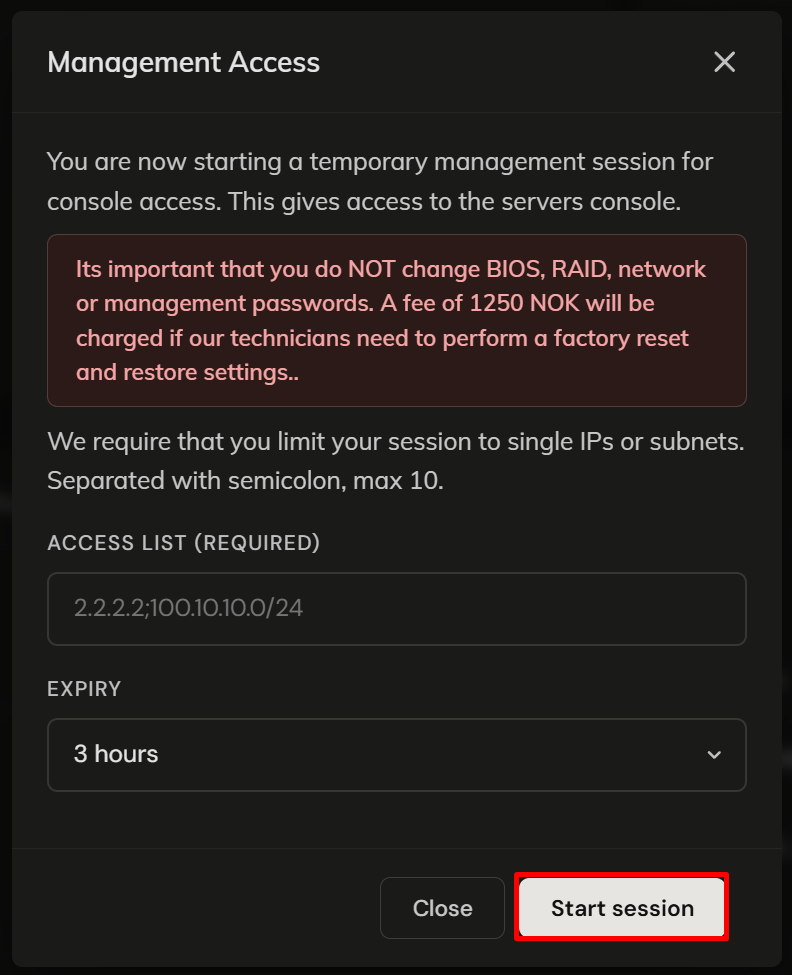
Click Console and start a management session.

WARNING
Do not change BIOS, RAID, network, or management passwords during your session. A fee of 1 250 NOK will be charged if Gigahost technicians need to perform a factory reset to restore settings.
2. Open the Server Viewer
Click Console Link in the banner on the server page.


3. Mount an ISO
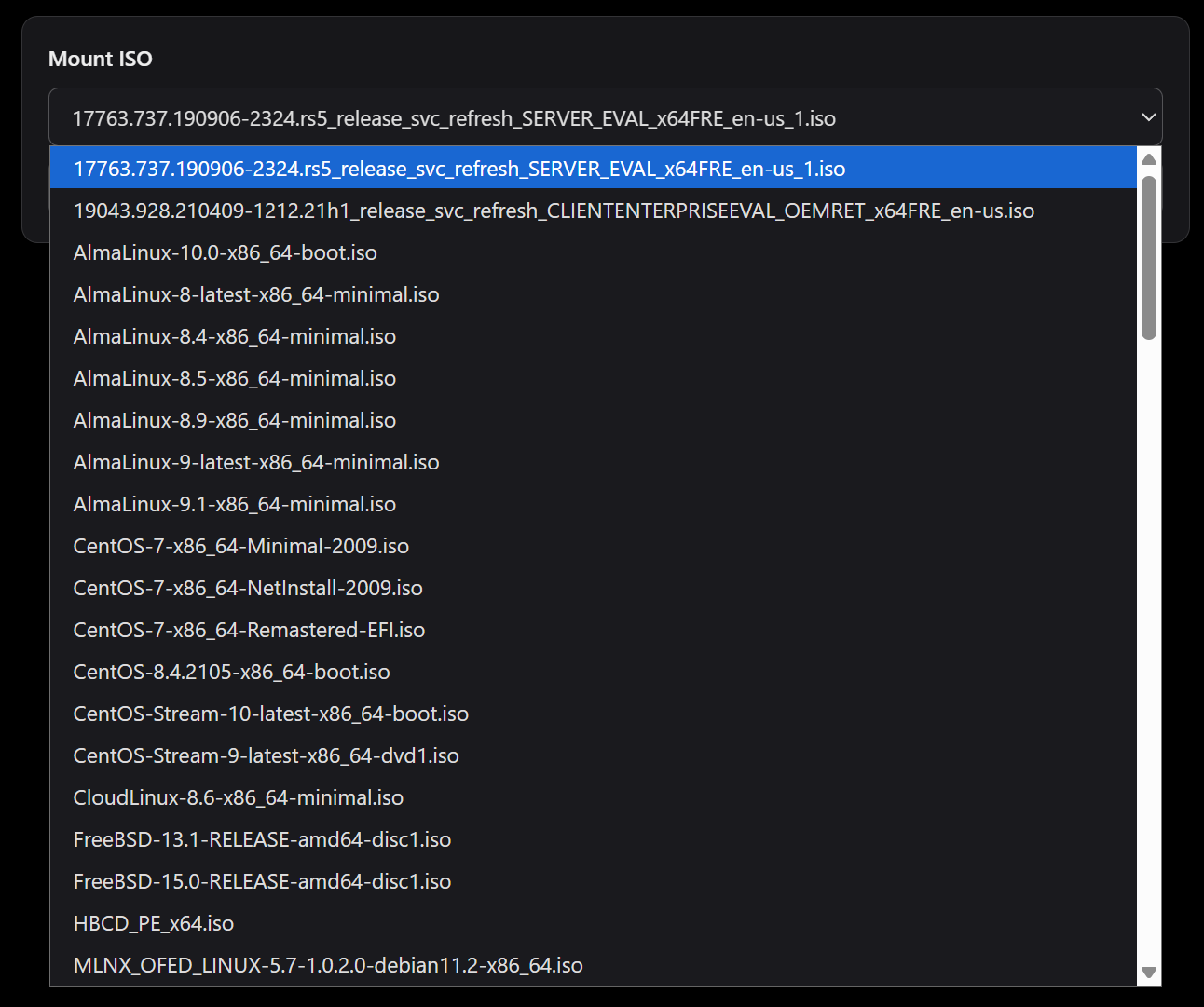
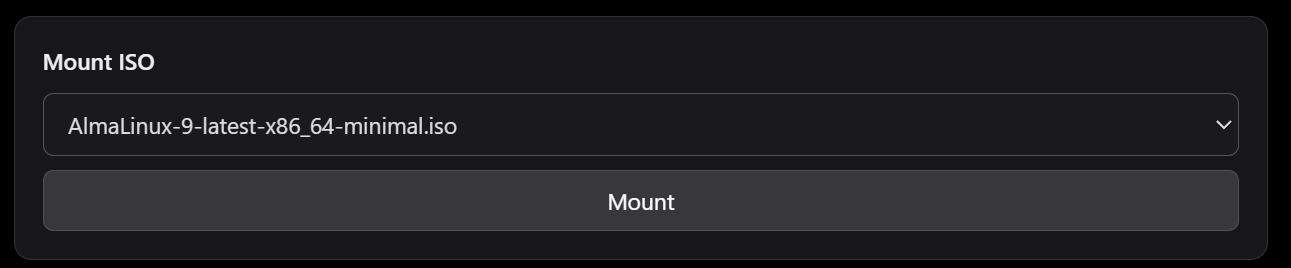
Click ISO in the Server Viewer toolbar, select the ISO and click Mount.
TIP
If the ISO you need is not listed, open a support ticket to request it be added.
4. Power On the Server
A black console screen means the server is powered off. Power it on with Power in the Server Viewer or from Flux.
5. Boot from the ISO
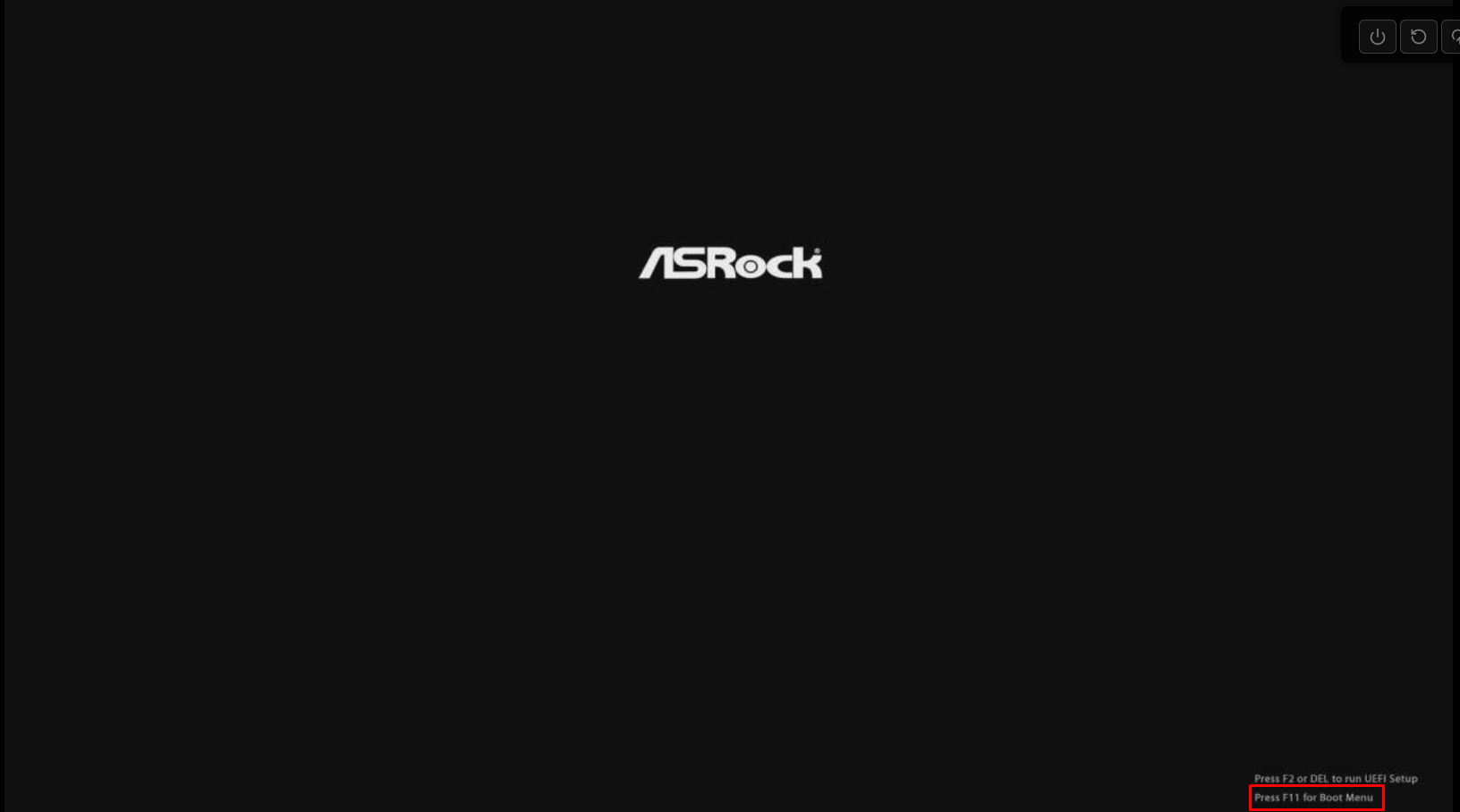
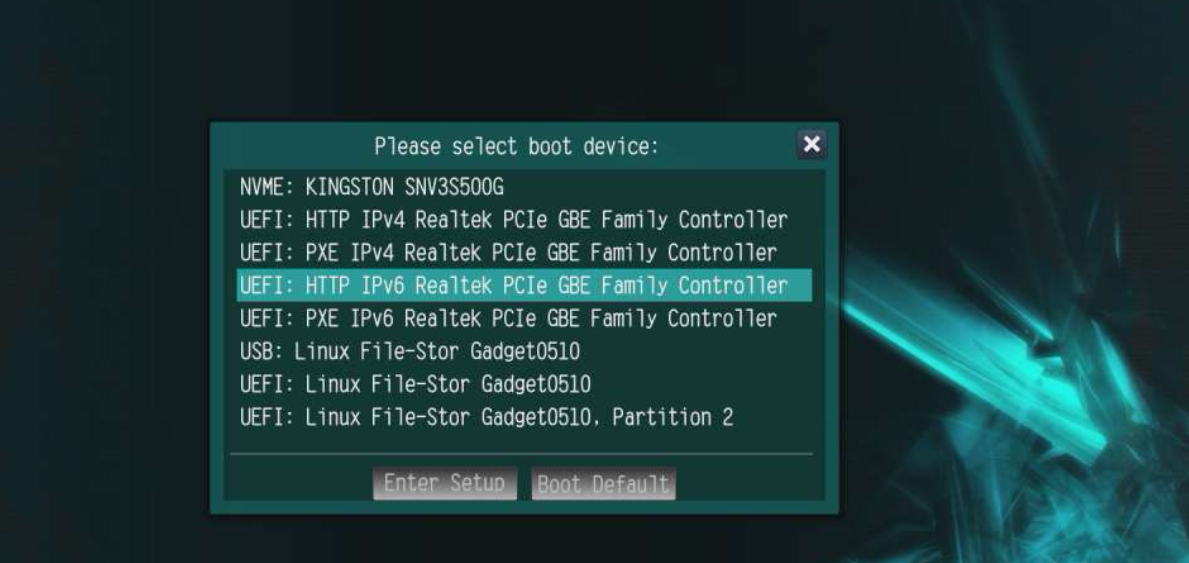
Press F11 at the boot screen to open the boot menu, then pick the UEFI or USB entry of Linux File-Stor.