

Rescue Mode
Rescue mode boots the server into a minimal Linux system that runs in RAM, so you can repair a server whose OS does not boot or that you are locked out of. Available on KVM VPS and dedicated servers.
Booting into Rescue Mode
WARNING
Booting to rescue is a forced reboot. Anything unsaved on the server is lost.
Click Rescue, optionally select SSH keys, and confirm with Yes, boot to rescue!.
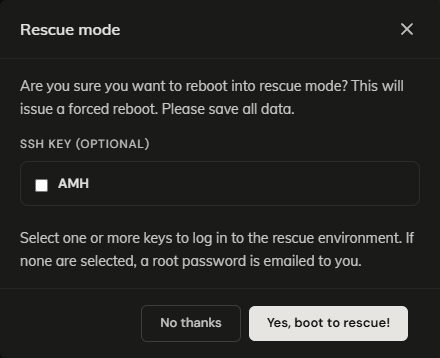
- Keys selected: the keys are written to
/root/.ssh/authorized_keysin the rescue system. No password is emailed; log in with your key as soon as the server answers on SSH. - No key selected: a root password is emailed to you once the rescue system has booted.
Rescue is disabled while an ISO is mounted, an install is running or a snapshot rollback is running. Wait for it to finish, or dismount the ISO, and try again. On a server without remote power management, contact Support.
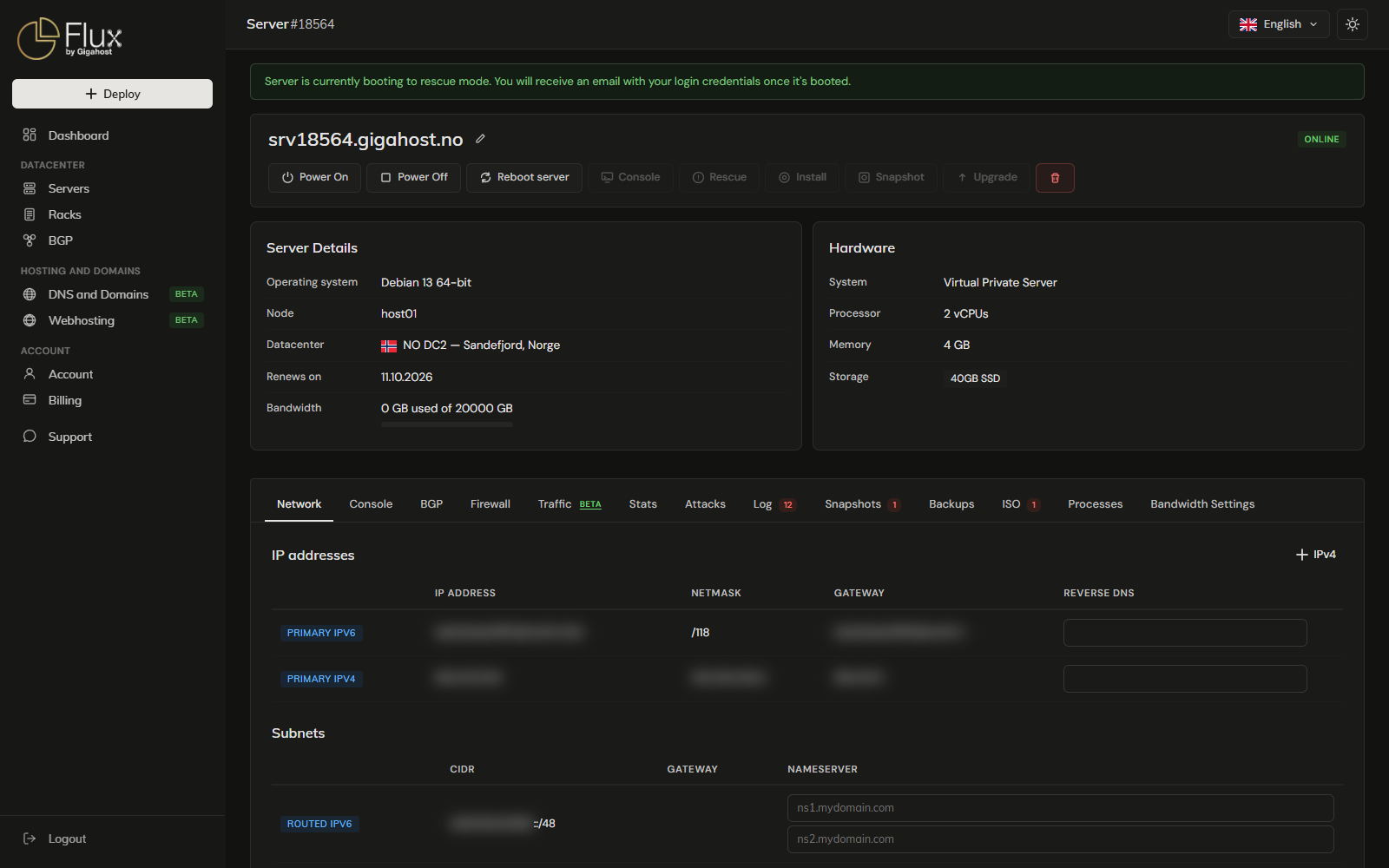
Accessing the Rescue Environment
Connect with SSH as root to the server's primary IP. The server's disk is a block device (typically /dev/vda or /dev/sda) and is not mounted automatically.
Mounting the Server Disk
# Identify the disk layout
lsblk

# Mount the root partition
mount /dev/vda1 /mnt

# If needed, mount additional partitions
mount /dev/vda2 /mnt/home
To make changes that need the full system (such as resetting a password or reinstalling packages), use chroot:
mount /dev/vda1 /mnt
mount --bind /dev /mnt/dev
mount --bind /proc /mnt/proc
mount --bind /sys /mnt/sys
chroot /mnt
Exiting Rescue Mode
Unmount the partitions (umount /mnt), then click Reboot server. The server boots from its own disk again.
WARNING
Files saved in the rescue system itself, outside the mounted server disk, are lost on reboot.