

Installing an OS
Install on a server reinstalls it with a new operating system or a one-click app.
WARNING
Reinstalling wipes every drive on the server. Back up anything you need first.
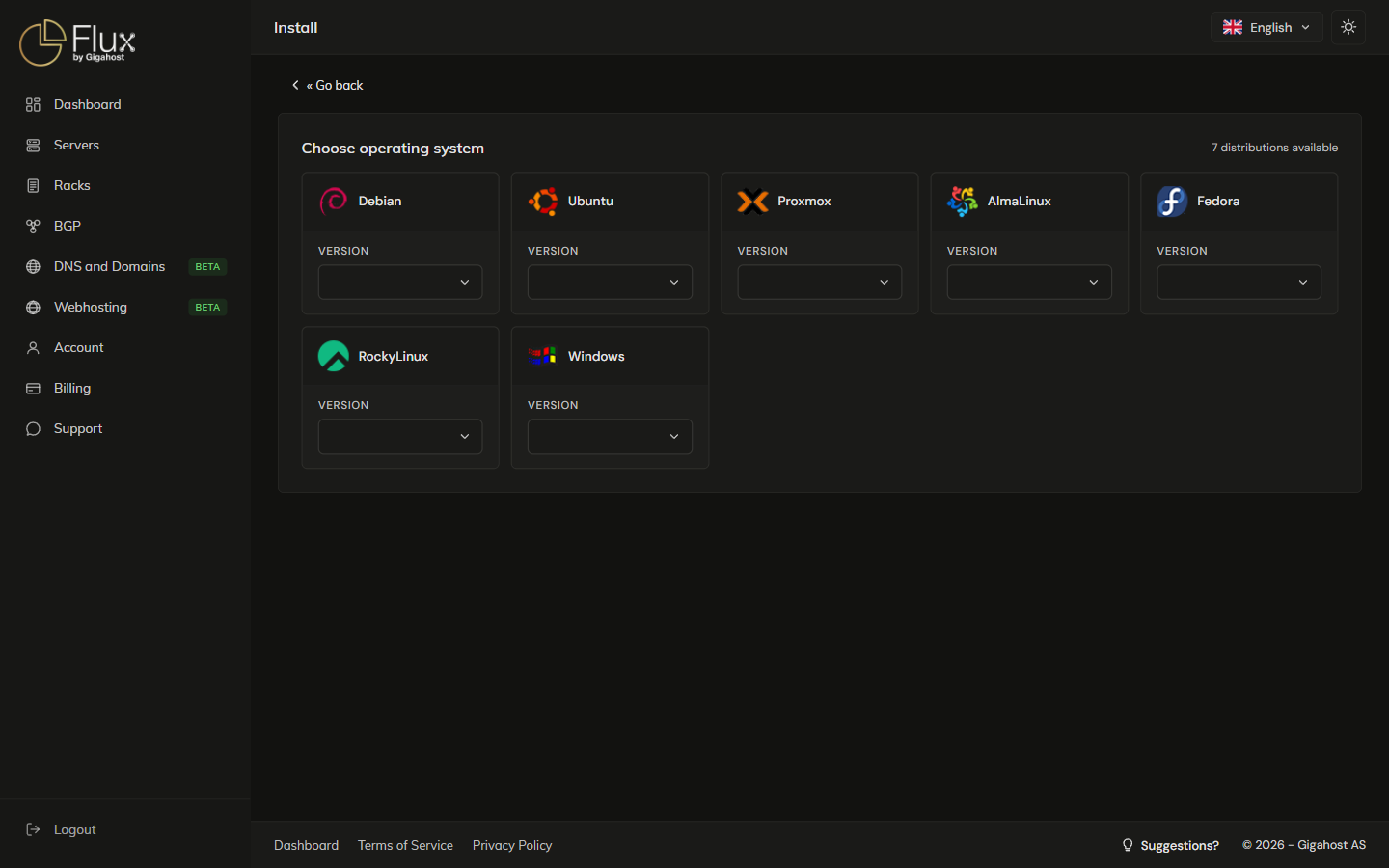
1. Pick an operating system
Pick a distribution and a version. The list depends on the server type, and versions change.
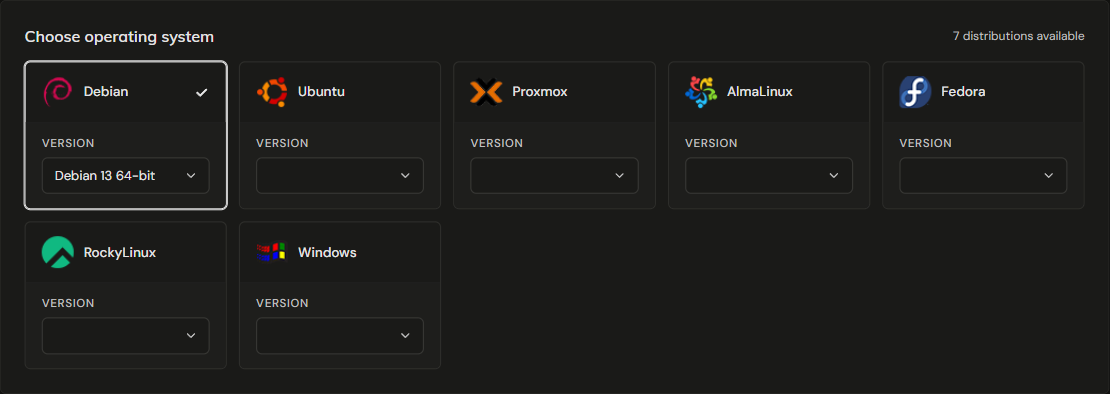
If a version is refused with Not enough memory, pick another OS or upgrade the server.
One-click apps
Available on KVM and dedicated servers. The Apps tab reinstalls the server with Debian 13 and the app on top, using the automatic disk layout. The domain, email and login work as on the Deploy page.
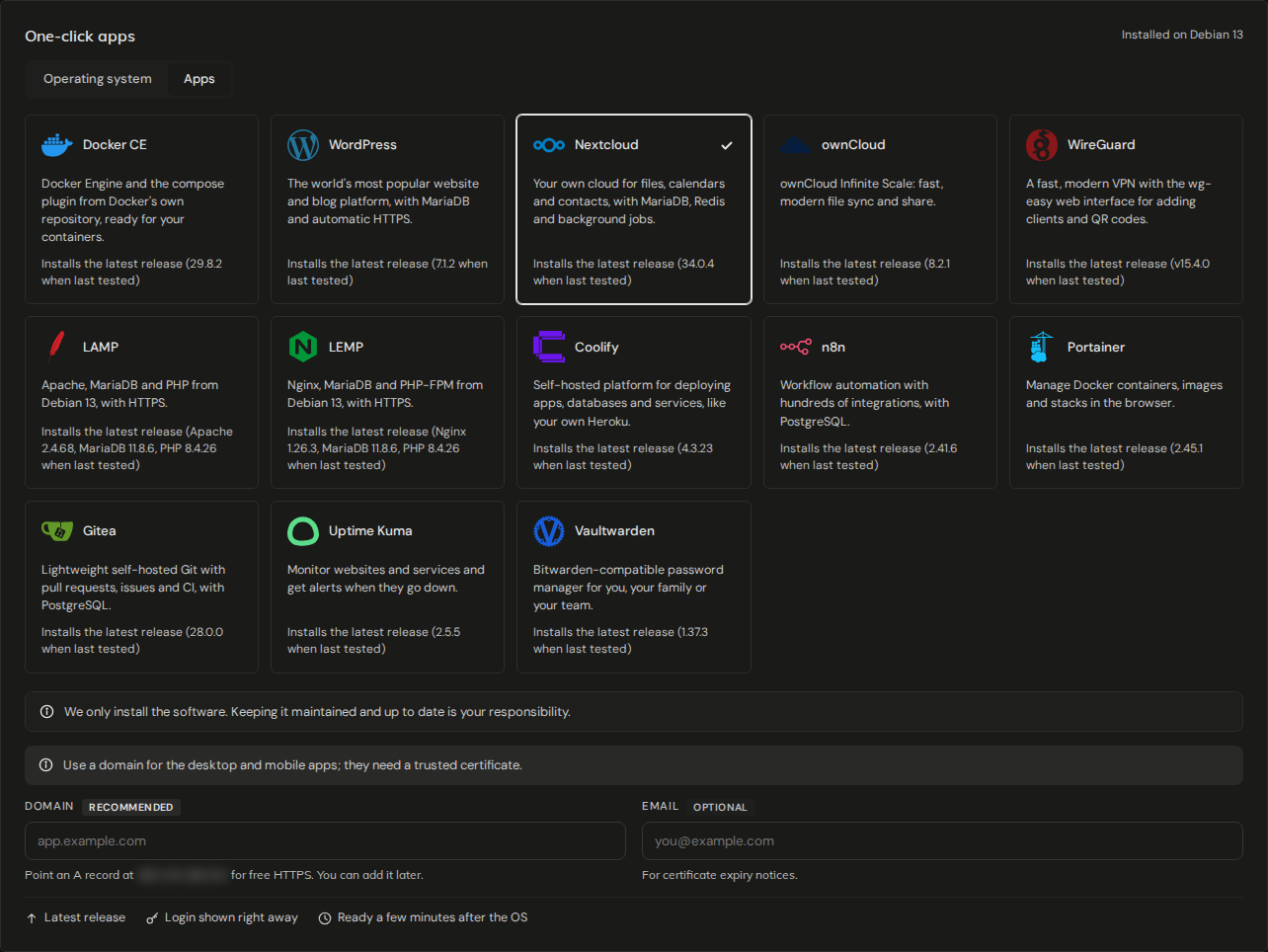
The app's login is shown while it installs. Save it before you leave the page.
Booting an ISO instead
Available on KVM servers. The ISO card mounts an ISO from your ISO library and reboots the server, and you install from the Console. If an ISO is already mounted, dismount it first.
2. Disk Configuration
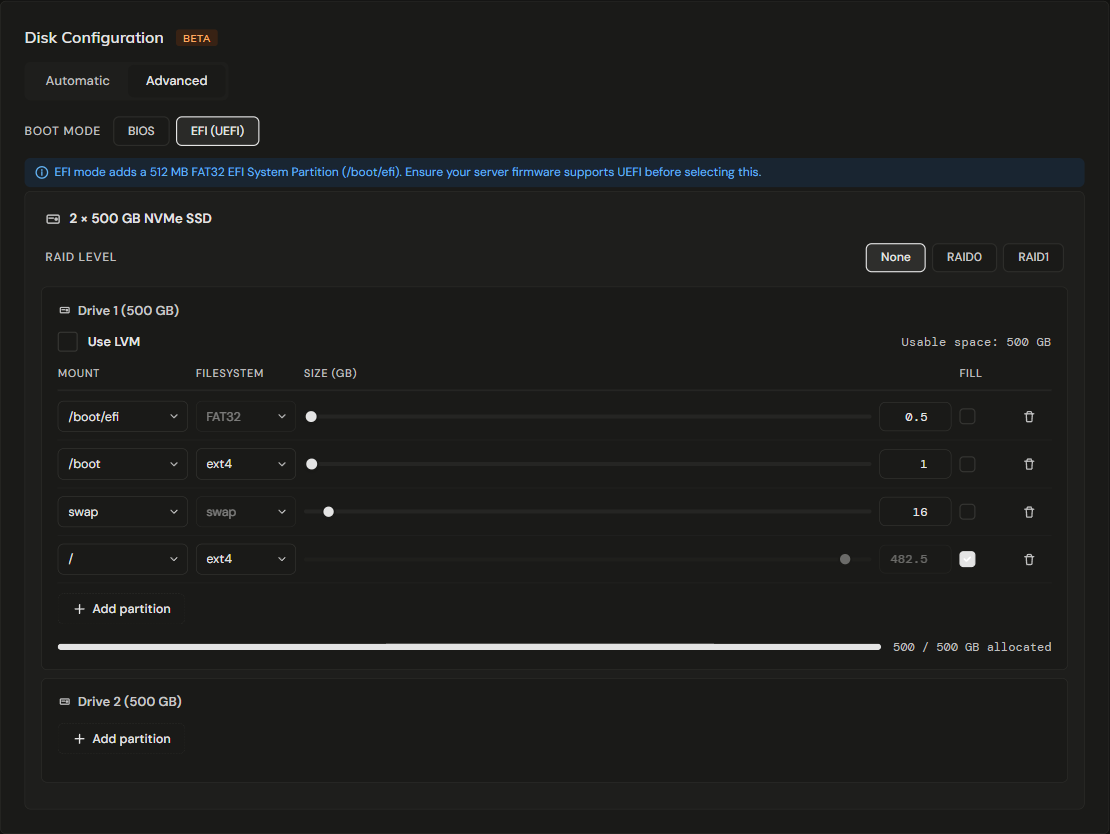
Automatic uses a default layout for the OS and the drives. Advanced lets you partition each drive yourself. Some operating systems and servers only offer the automatic layout.

Advanced
- Boot Mode defaults to EFI. Choose BIOS if the server's firmware does not support UEFI.
- Use LVM puts every partition except
/bootin an LVM volume group. - Fill gives a partition all the space that is left on the drive.
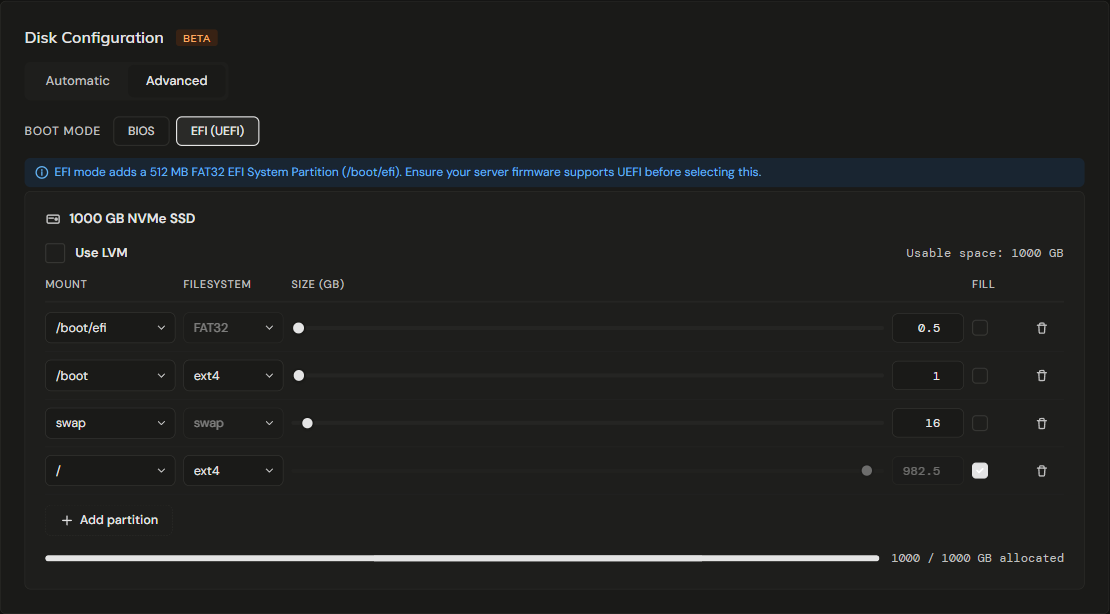
The install cannot start until the layout problems listed under the editor are fixed.
Windows always uses the advanced layout and needs a C: partition. LVM and RAID are not available for Windows.
RAID
Available on dedicated servers with more than one drive. RAID Level puts the drives in an array. RAID0 has no redundancy: one failed drive loses all the data. Ubuntu cannot use RAID0.
TIP
Switching RAID levels resets the partition layout. Pick the RAID level first, then change the partitions.
3. Settings
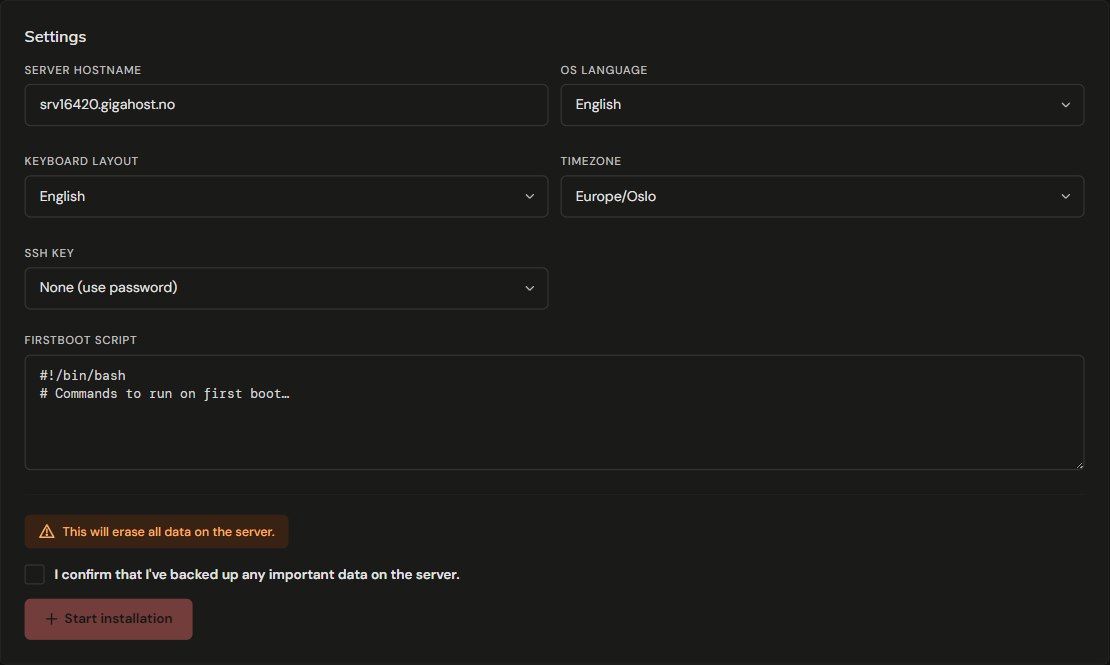
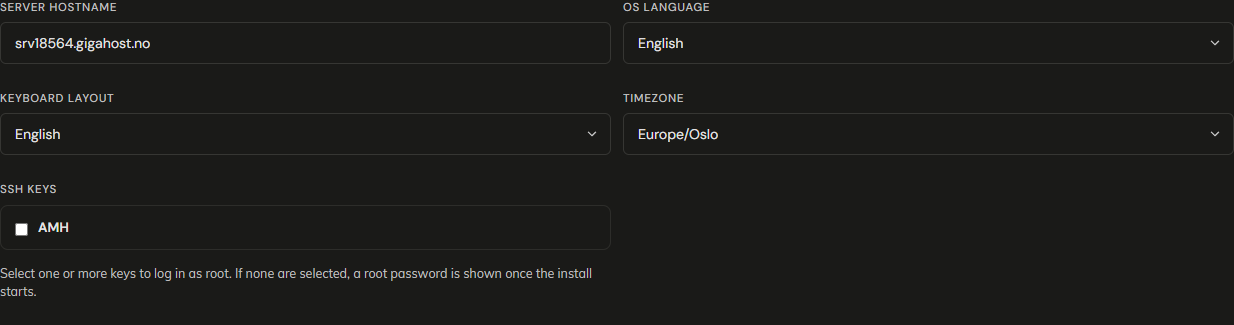
- Server hostname must be a fully qualified name such as
web.example.com. Anything else is replaced by the server's primary IP address. - Timezone defaults to
Europe/Oslo. - SSH keys: pick up to 10 keys from SSH keys to log in as root. With no key selected, you get a root password when the install starts.
- Firstboot script runs your commands on the first boot. Available on KVM and dedicated servers. With a one-click app, it runs after the app is installed.
4. Confirm and start
Tick the backup confirmation, click Start installation and confirm. The install can take up to an hour.

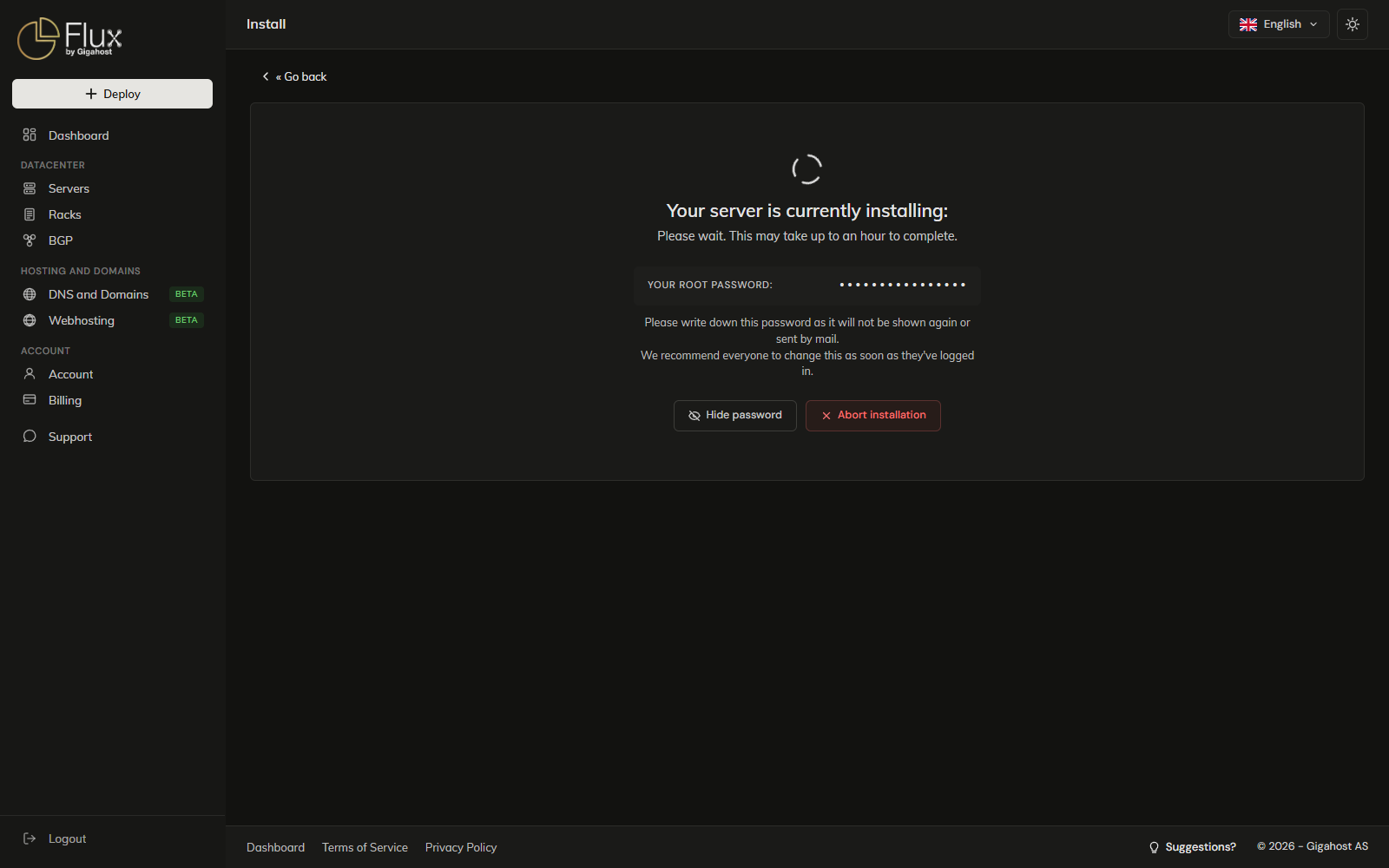
If you selected no SSH key, the root password is shown here. Copy it before you leave the page: it is not shown again or sent by email.
If the install ends with Installation failed, start it again, and contact Support if it fails a second time.
Abort installation stops a running install on KVM and dedicated servers. The server may not boot afterwards.
WARNING
On a dedicated server, do not power-cycle the machine while the install runs. If it stalls, use Abort installation or open a Support ticket.