

Firewall
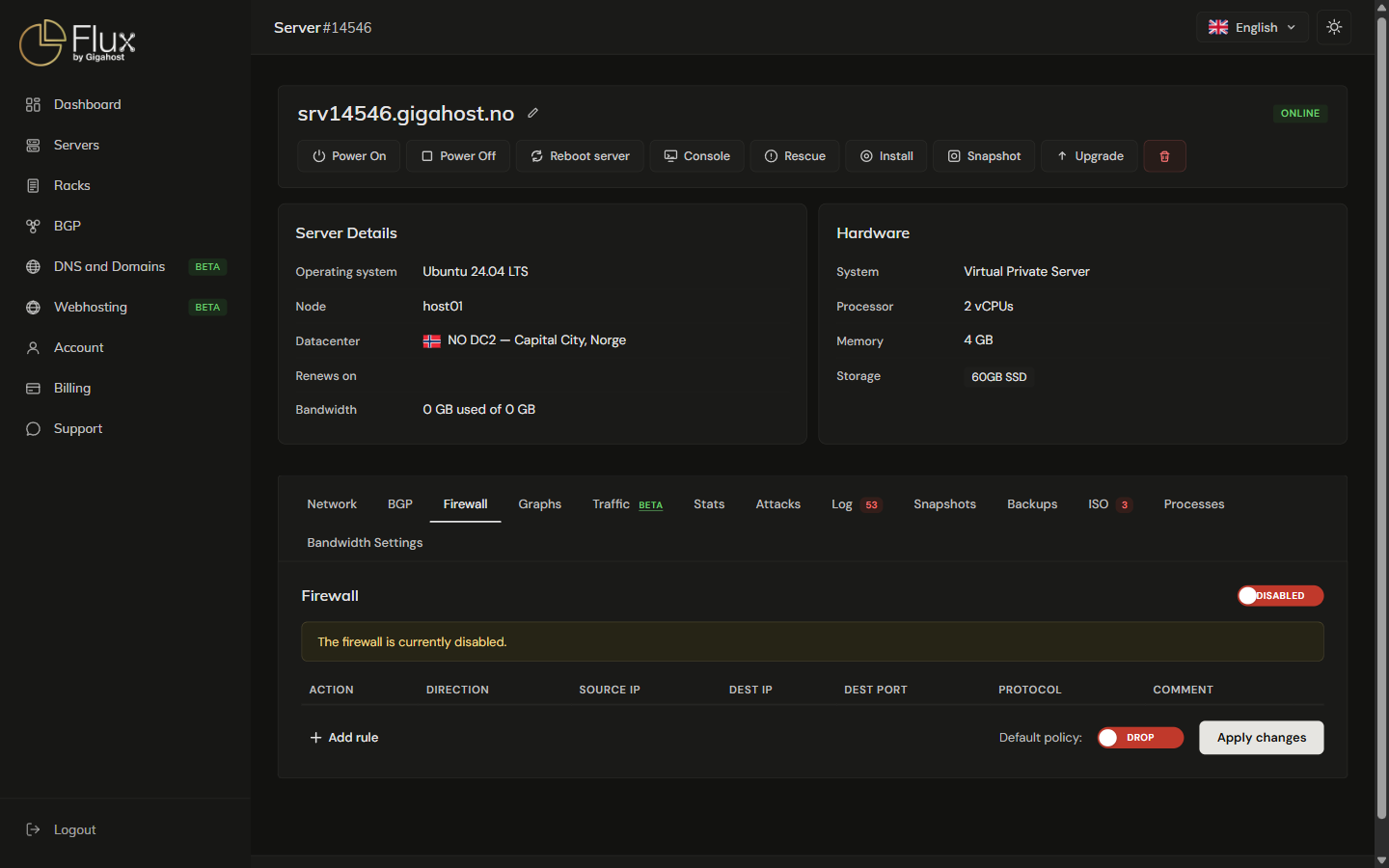
The firewall in the panel filters traffic before it reaches the server's operating system. Available on KVM and LXC servers. On a dedicated server, use the firewall in the operating system (iptables, nftables, firewalld, ...).

Rules
Rules are checked from the top of the list, and the first rule that matches wins.
- Source IP and Dest IP take an address or CIDR. Blank,
anyand0.0.0.0/0all mean any address. - Dest Port takes one port, a list or a range, for example
80,1000:2000.
Applying changes
Adding, editing, deleting or moving a rule, switching the firewall on or off and changing the default policy are only staged. Nothing takes effect until you click Apply changes. Staged changes are lost if you leave the server page without applying them.
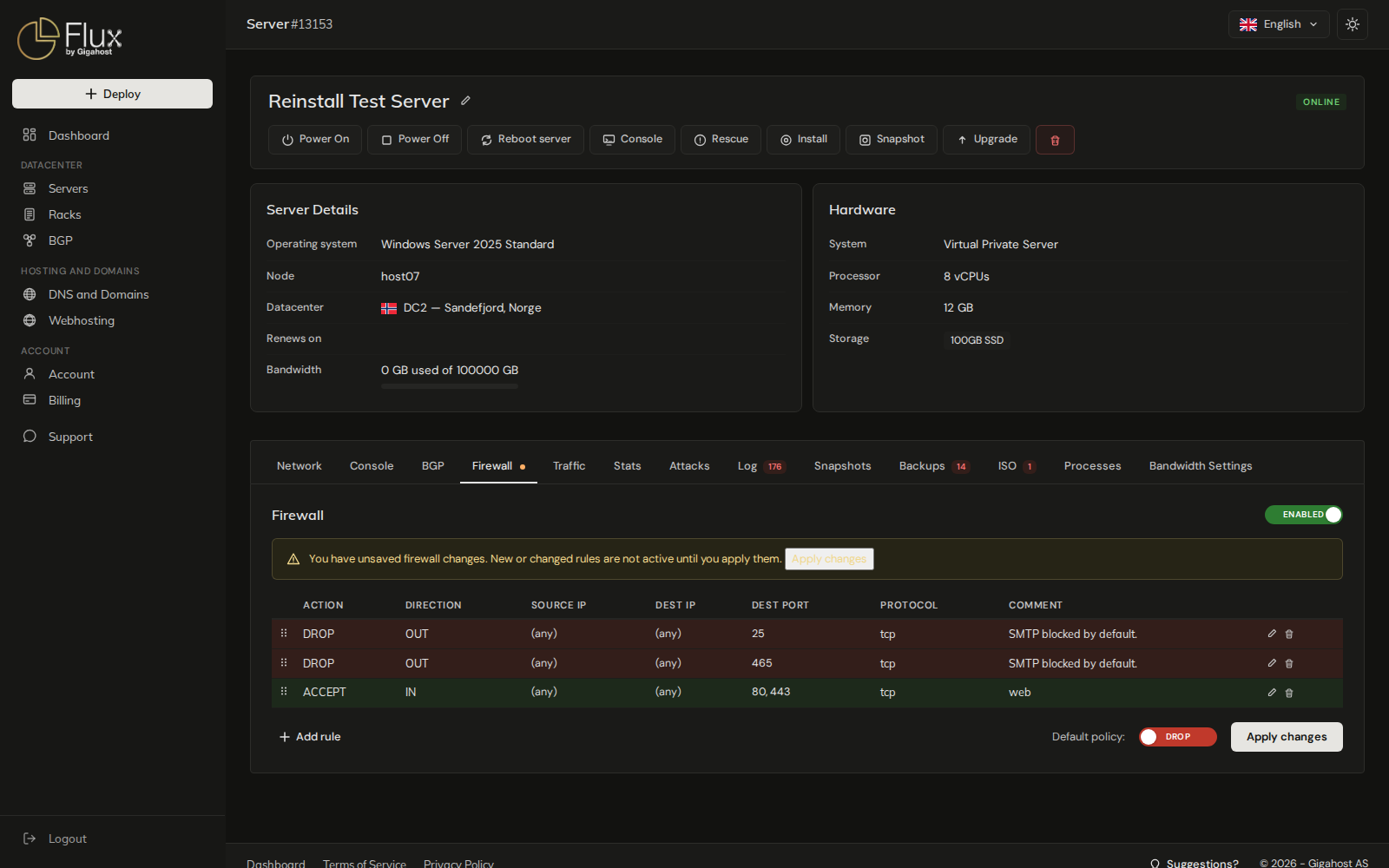
If the server refuses a rule, nothing is changed and the previous ruleset stays in place. The notification names the rule, for example Error: Firewall rule 3 was rejected (invalid dport). No changes were saved. Rules are counted from the top of the list, including the locked SMTP rules.
Switching the firewall off keeps the rules. They are applied again when you switch it back on.
Locked SMTP rules
Outbound mail is blocked by default. Until Support opens SMTP on the server, two locked rules, DROP OUT port 25 and DROP OUT port 465, stay at the top of the list. They cannot be edited, deleted or moved, and the firewall cannot be switched off while they apply. Trying gives one of these errors:
Unable to disable firewall, due to default SMTP blocking. Contact support to review for opening SMTP.Unable to delete rules for port 25/465 or overwrite them, due to default SMTP blocking. Contact support to review for opening SMTP.
To send mail from the server, open a Support ticket and ask to have SMTP opened. The two rules then become ordinary rules you can delete.
Default policy
The default policy decides what happens to inbound traffic that matches no rule. It is ACCEPT by default. Outbound traffic that matches no rule is always accepted; block it with DROP OUT rules.
Don't lock yourself out
Before you set the default policy to DROP, add an ACCEPT rule for SSH (22) from your own IP. If you lock yourself out, the Console is the way back in.
Example: web server with SSH
ACCEPTINTCP dest22ACCEPTINTCP dest80ACCEPTINTCP dest443- Default policy
DROP