

Power & Console
Power actions, console access, renaming and termination from the server's action bar.
Power Actions
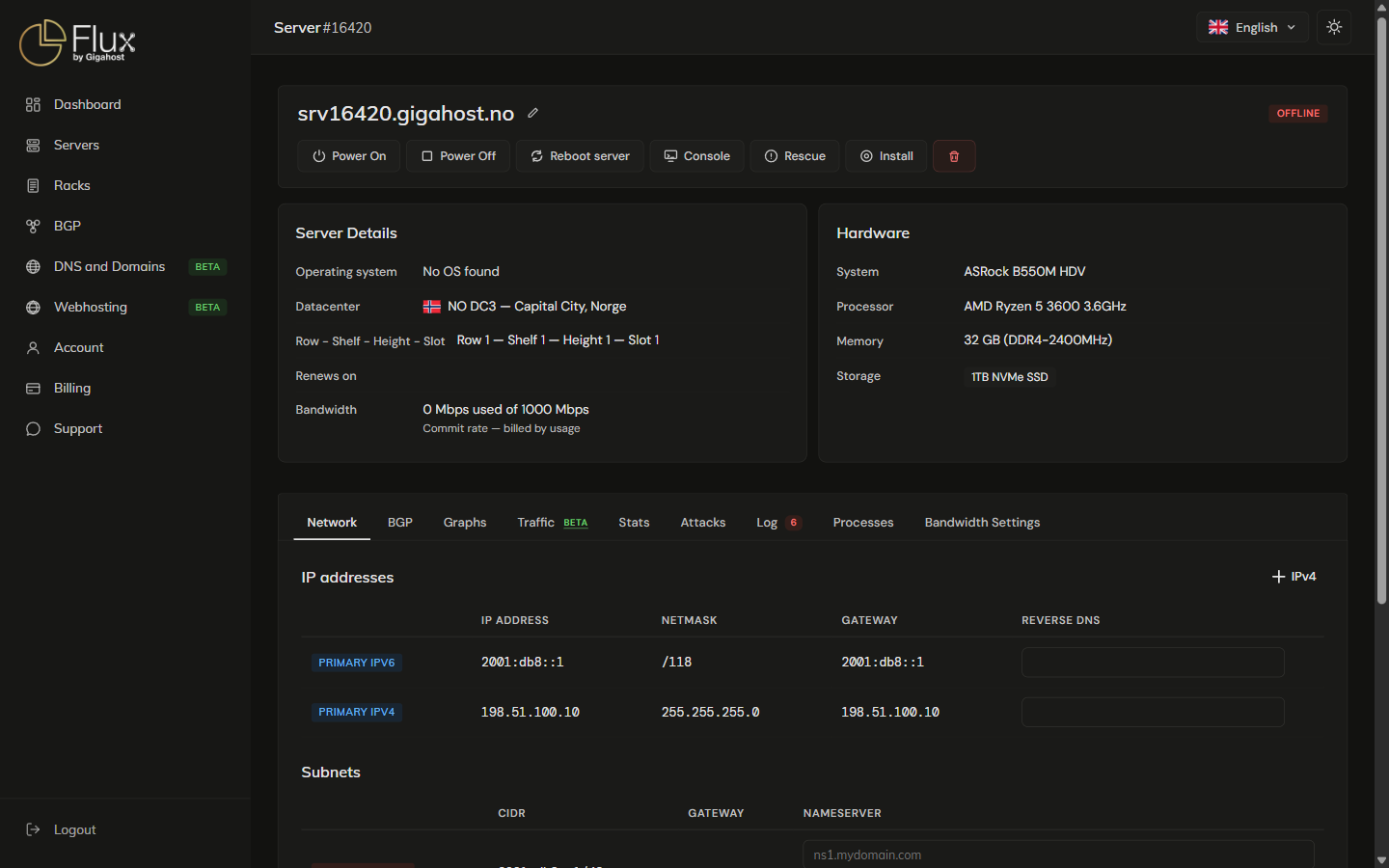
- Power Off is a hard stop, the same as pulling the power cord. Shut down from inside the OS for a graceful stop.
- Reboot server is a power cycle: off, then on.
The power buttons are disabled while a snapshot rollback is in progress. On a server without remote power management, ask Support to power it off or reboot it.
WARNING
Power Off cuts power without giving the operating system time to flush writes to disk and can damage the filesystem. Use it only when the server does not respond to a shutdown from inside the OS.
Console Access
When SSH is unavailable (misconfigured firewall, broken SSH daemon, forgotten password), the console gets you in without the network.
KVM and LXC console
Console opens the in-page Console. It is disabled while the server is booting to rescue mode or a snapshot rollback is running.
Dedicated server console (IPMI)
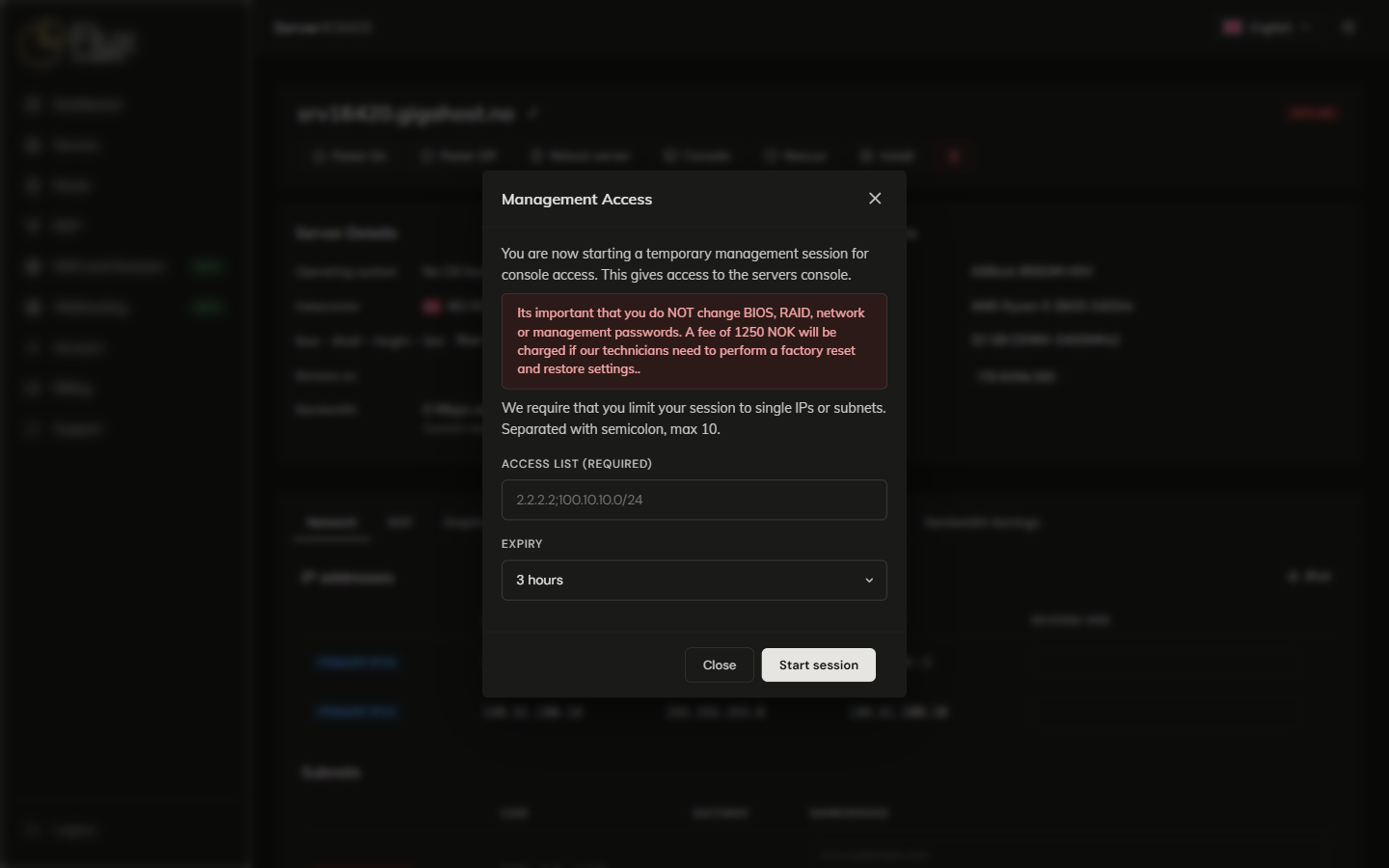
Dedicated servers use IPMI. Console starts a temporary management session that you reach through the server's management IP.
- Click Console.
- Under Access list (required), enter the IP addresses or subnets that may reach the management interface, separated by semicolons (max 10). Entries that are not valid IPv4 addresses or CIDR subnets are dropped.
- Pick an Expiry. No expiry needs the unlimited IPMI package, NOK 250 per month; contact Support to get it.
- Click Start session.
A server has one session at a time. Starting another is refused with "Server already has an active IPMI/BMC session.", so click Destroy session first.
If the server has no IPMI, a portable IP-KVM can be attached for free; contact Support. Sessions are refused while the server is suspended, and with "No sessions currently available. Please contact support." when every KVM unit is in use.
See ISO via console for the fee that applies if BIOS, RAID, network or management passwords are changed during a session.
Server Name
Edit server name changes the name in the Gigahost panel only. It does not change the operating system hostname.
Terminate server
Sub-client users cannot terminate servers.
WARNING
When the server is terminated it is permanently deleted together with all data, snapshots and backups. This cannot be undone. Retrieve everything you need first.
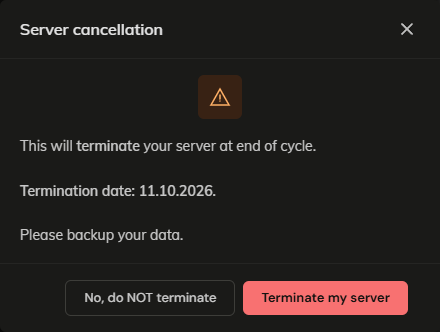
- Click Terminate server. The dialog shows the termination date, the end of the current billing period. Click Terminate my server.
- Enter a Reason (required) and click Cancel my server.
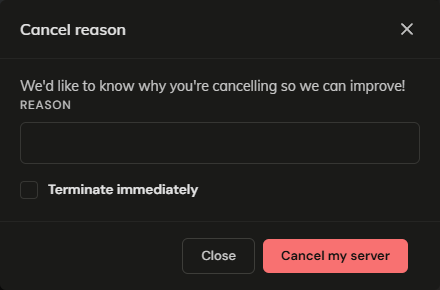
The server keeps running until the termination date. Terminate immediately in the reason dialog deletes it now instead; early termination gives no refund.
An hourly server has no billing period to run out: it is deleted as soon as you confirm the reason.