

Backups
Automatic backups for KVM servers, stored on separate infrastructure from the server. On a dedicated server, use tools such as rsync, borg or restic to an off-host destination instead.
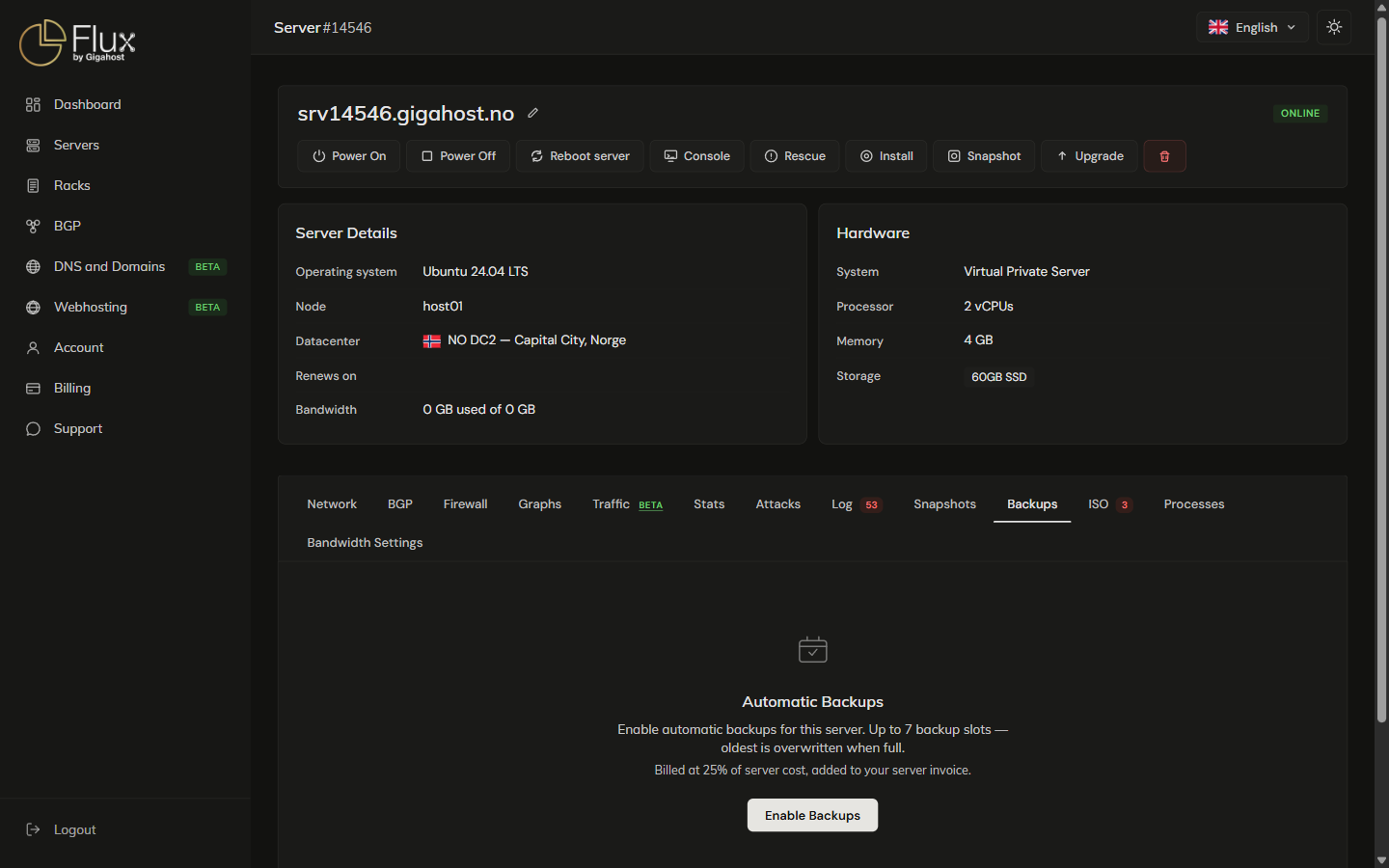
Enabling the backup service
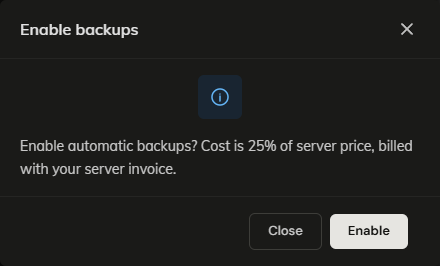
Backups cost 25% of the server price and keep up to 7 backups; the oldest is overwritten when all are in use. Click Enable Backups on the Backups tab and confirm.

Backups run on a schedule. You cannot take one by hand, and the list stays empty until the first scheduled backup has completed.
The 25% is added to the server's invoice. If more than 34 days remain until the server's next billing date, a separate one-time invoice covers the backup fee up to that date. On hourly servers the monthly cap rises by 25% while backups are enabled.
Viewing backups

File Restore downloads single files from a backup. Restore restores the whole server.
Downloading single files
File Restore browses a backup without touching the server. Download files one at a time; folders cannot be downloaded as a whole. Every download is recorded in the server's activity log.
Restoring the whole server
WARNING
Restoring replaces all data on the server's disk with the backup. Anything created or changed after that backup is lost.
Click Restore next to the backup and confirm. The server is stopped, restored and started again automatically.
Cancelling the backup service
WARNING
After you cancel, the backups are no longer listed. Download anything you still need with File Restore first.
We keep backing up the server in the background as a safety measure on our side. These backups are deleted only when the server is deleted.
Click Cancel Backups at the bottom of the tab and confirm.