

Deploying a server
The Deploy page orders new cloud and bare metal servers.
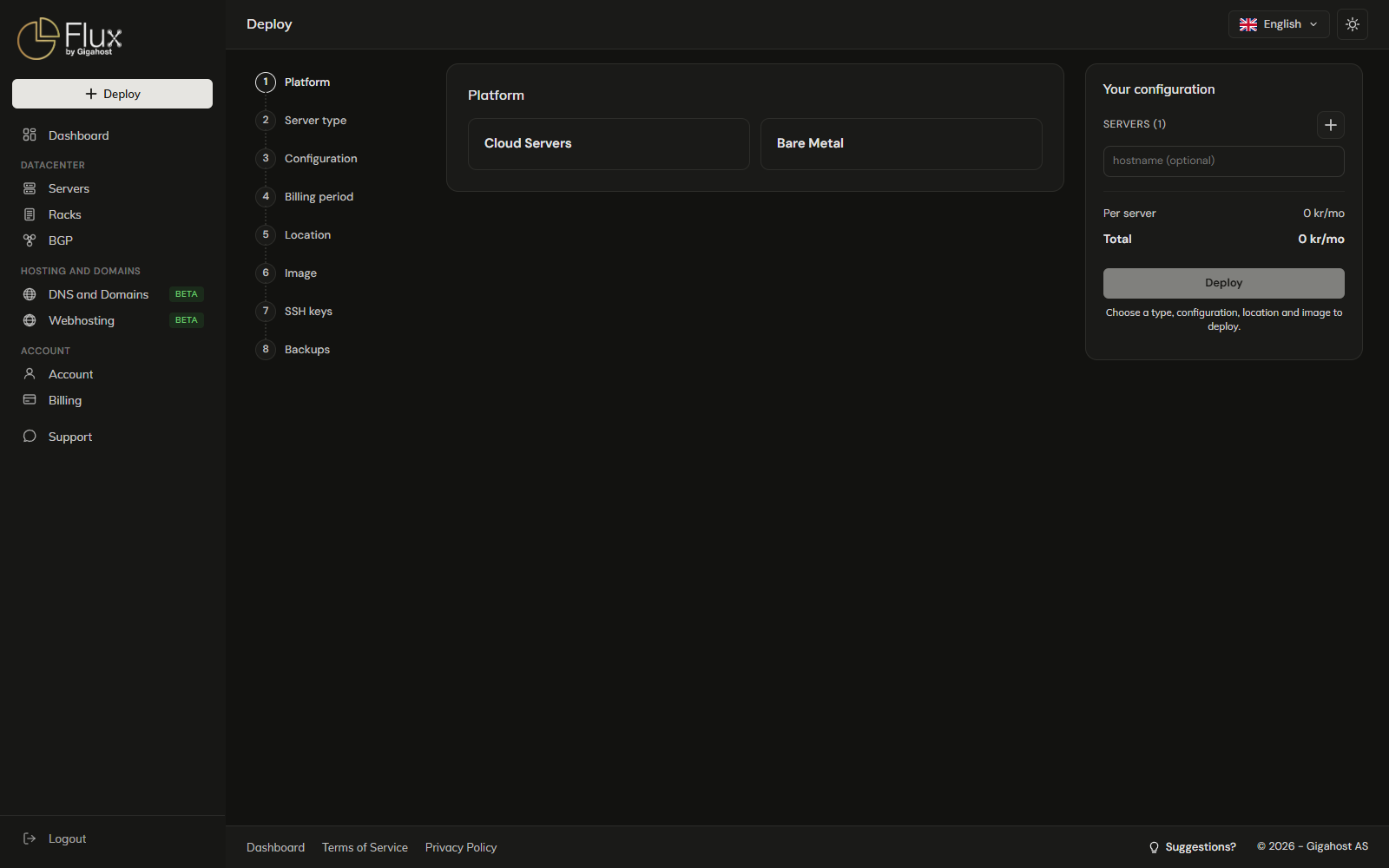
Platform and server type
Cloud Servers are KVM virtual servers. Bare Metal is dedicated hardware.
Configuration
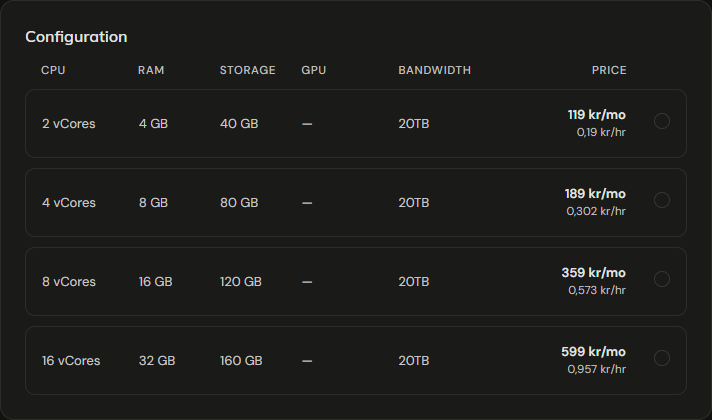
A bare metal plan marked Built to order is out of stock but can still be ordered. The server is assembled for you and takes longer to provision. For Reserve / notify, see Sold-out bare metal.
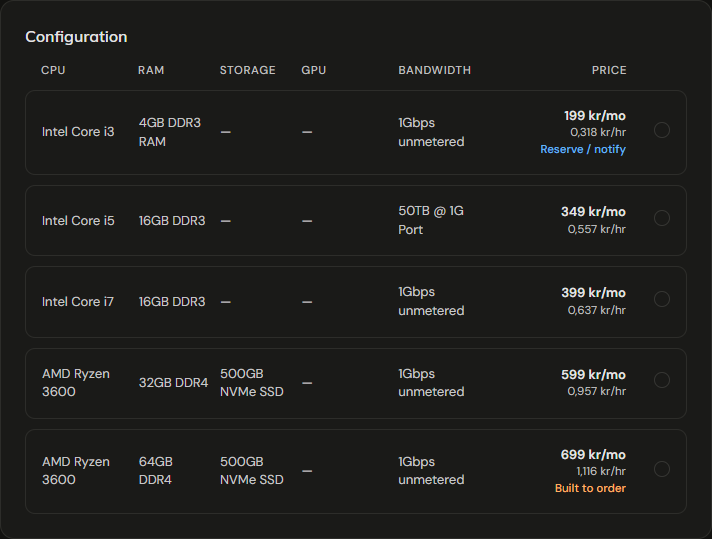
If you change a Configuration options value from its default, the order becomes a custom configuration, which is billed on a recurring period only. Hourly billing is then not available.
Billing period
Hourly is offered only on plans that allow it, and hourly orders never carry a setup fee.
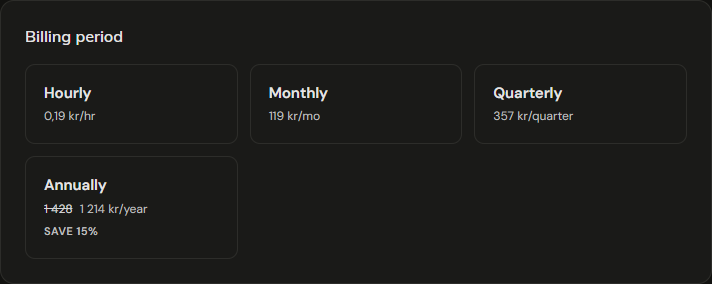
Hourly billing needs a card or PayPal on file plus one paid invoice, or a balance that covers one month of your hourly services.
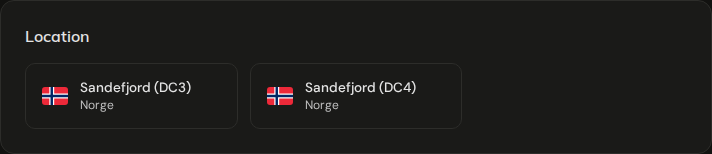
Location
Built-to-order bare metal and reservations for sold-out plans are placed by region, not by datacenter.
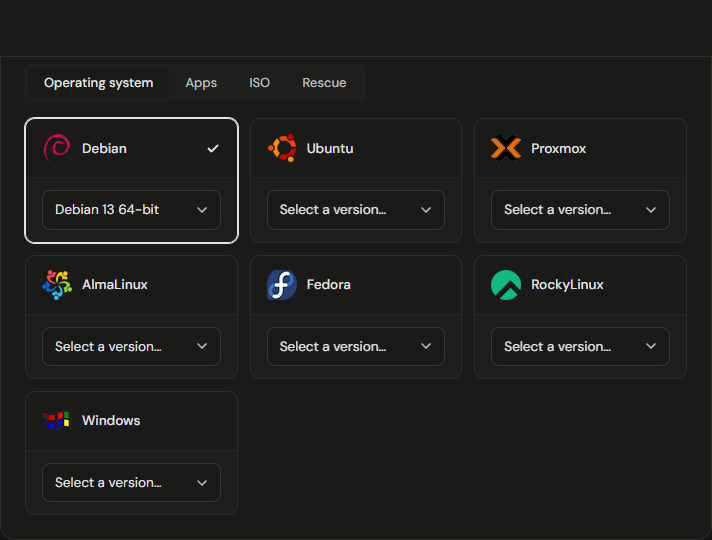
Image
- Apps: a one-click app installed on top of Debian 13, see One-click apps.
- ISO (cloud servers only): boots an ISO you have already uploaded from another server, and you install through the console. See ISO Images.
- Rescue: the server boots straight into rescue mode instead of installing anything. See Rescue Mode.
One-click apps
The server gets Debian 13 first, and the app is installed on top once the operating system is up. The release shown on the card is the one last tested; the install always takes the latest release.
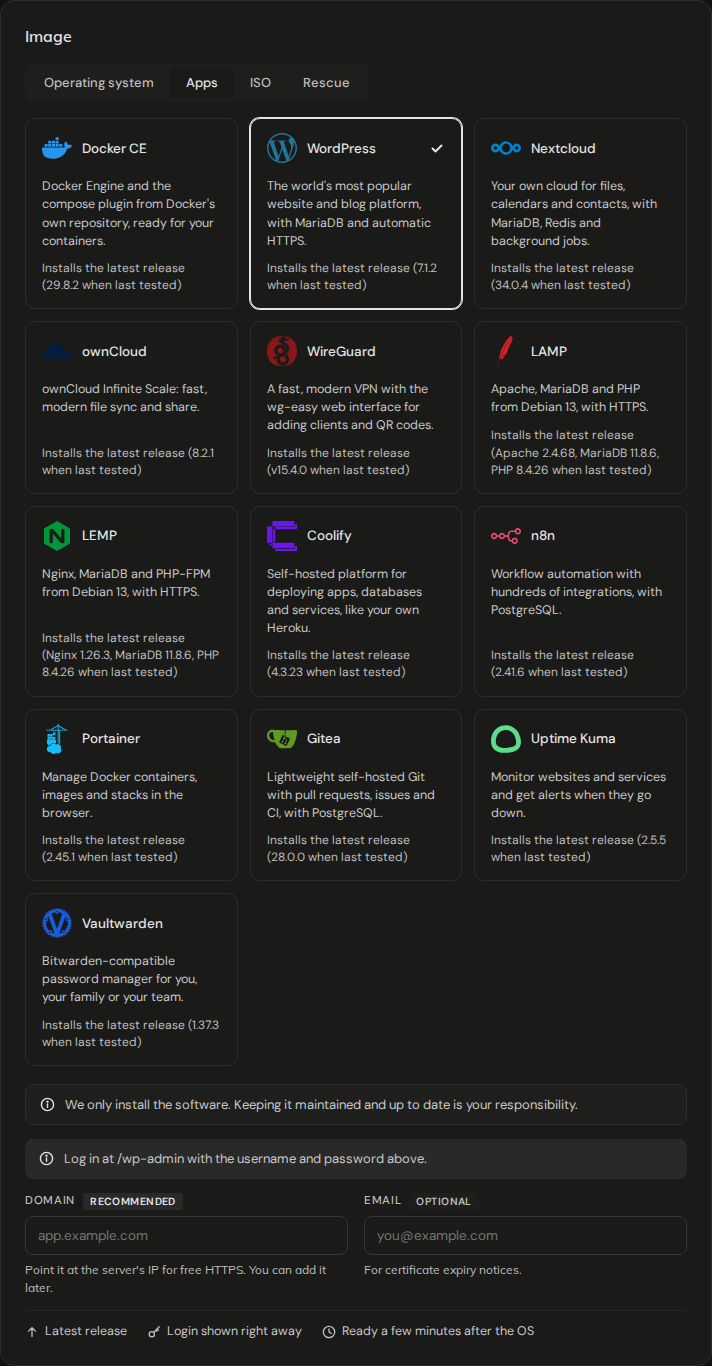
- Domain: if the domain already points to the server's IP when the app is installed, the app is served on it with a Let's Encrypt certificate. Otherwise it is set up on the IP address with a self-signed certificate. The IP is on the progress card as soon as it is assigned, so you can create the A record while the operating system installs. A domain can only be used on one server, so an order with more than one server cannot have one.
- Email: used for certificate expiry notices. Apps that log in with an email address use it as the admin login; left empty, that login is
[email protected].
WARNING
Gigahost installs the app but does not maintain it. Keeping it updated is your responsibility.
On the server, the gigahost-app command manages the app:
gigahost-app info                    # address and login
gigahost-app update                  # pull the newest release and restart
gigahost-app set-domain app.example.com   # move to a domain with a Let's Encrypt certificate
set-domain refuses until the domain resolves to the server's IP. The login is also kept in /root/app-info.txt and the install log in /var/log/gigahost-app.log.
SSH keys and backups
Deleting a key in Manage keys removes it from your account at once, without a confirmation. See SSH keys for the rules on key names.
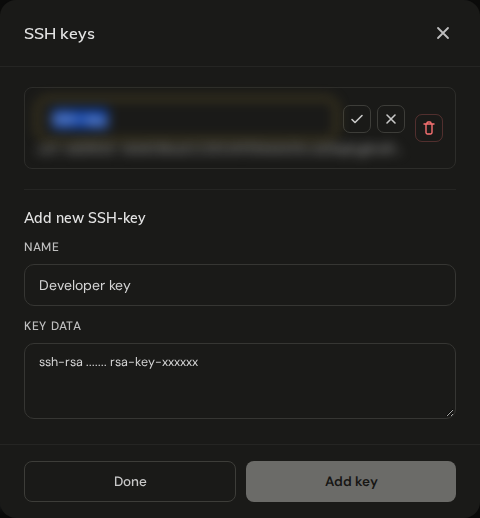
If you select no key, a root password is generated and shown on the deploy page only while the server is being set up. On a monthly, quarterly or annual order the password is also emailed when the install finishes; hourly orders do not get it by email.
Backups (cloud servers only) enables daily automated backups for 25% on top of the plan price. You can also turn this on later from the server's Backups tab.

Your configuration
- hostname (optional): leave it empty and the server is named
srv<id>.gigahost.no. Letters, digits,.,-and_are accepted; anything else is refused withRequired field is invalid: hostnames. The operating system hostname is the name in lowercase, cut at the first character that is not a letter, digit,.or-, soweb_01.example.combecomesweb. The name in the panel keeps what you typed. - + adds another server with the same configuration, up to 10 in one order. Auction servers are one per order.
- Prices are in NOK excluding VAT.
- Discount codes work on recurring periods with a single server; adding a second server or switching to hourly removes the code.
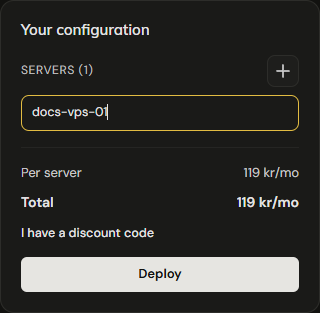
After you click Deploy
There is no confirmation dialog. The order is placed at once, and an invoice for the first period is created.
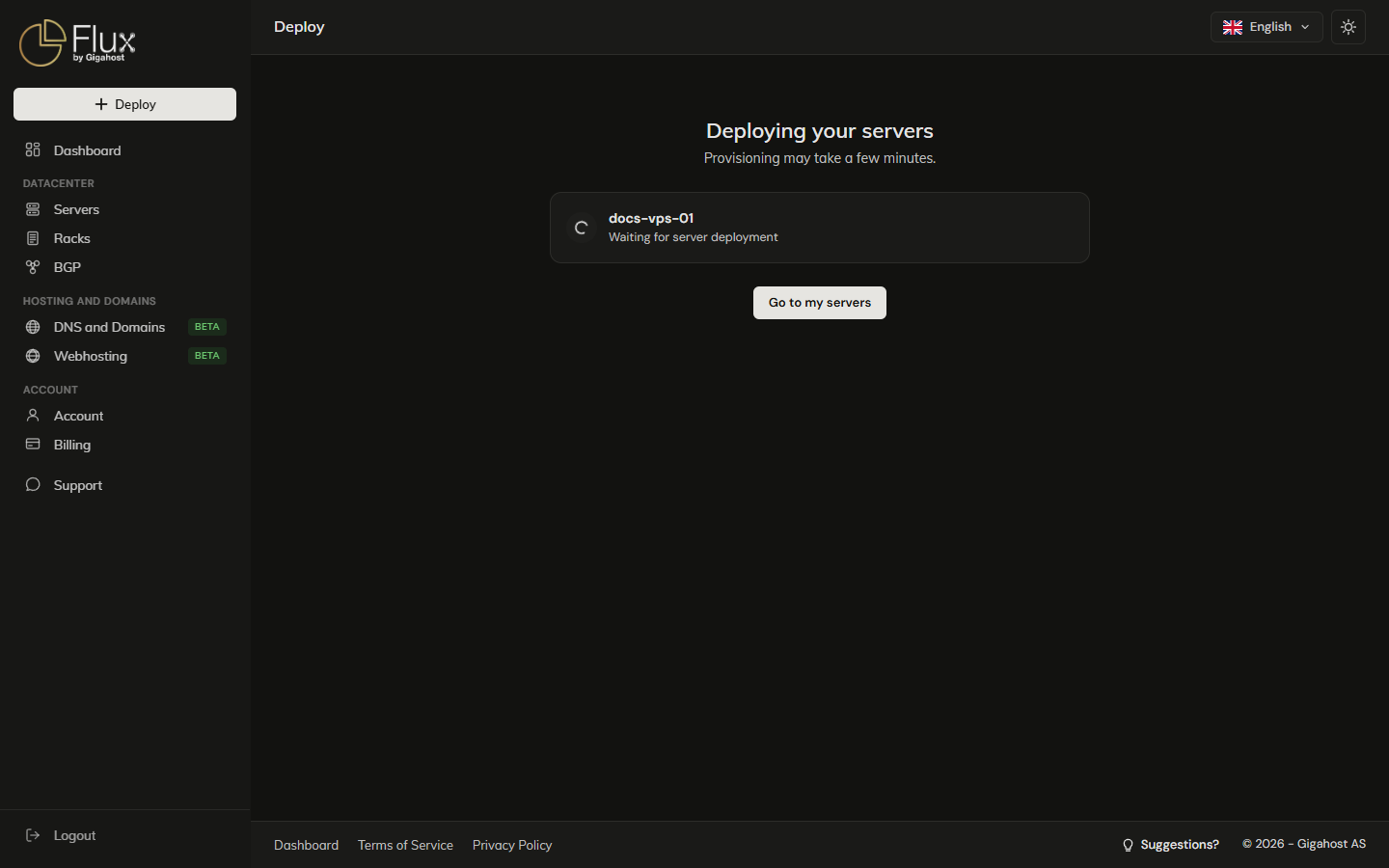
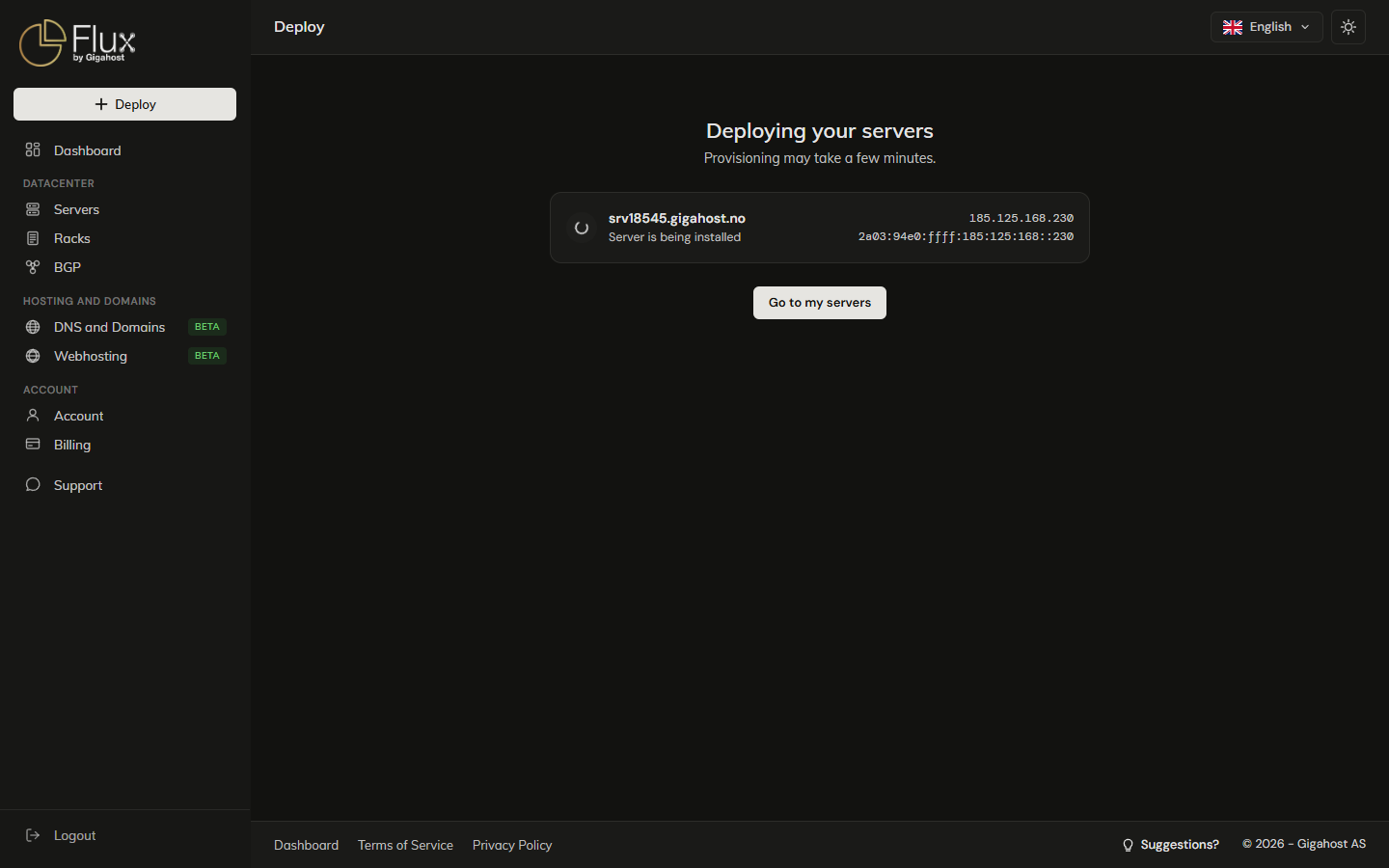
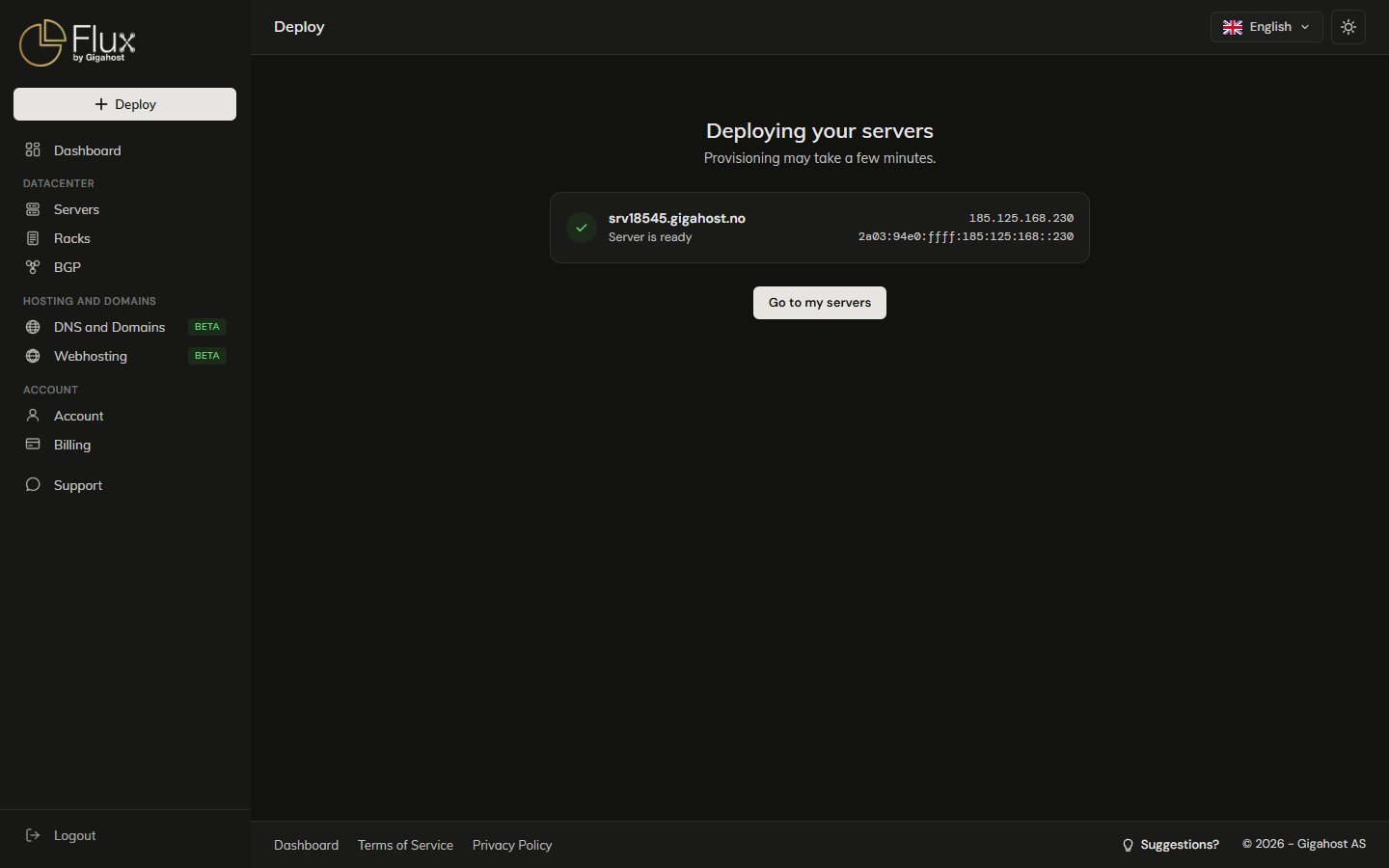
WARNING
Save the root password and the app login while they are on screen. They are only shown while the server is being set up and are not shown again anywhere in the panel.
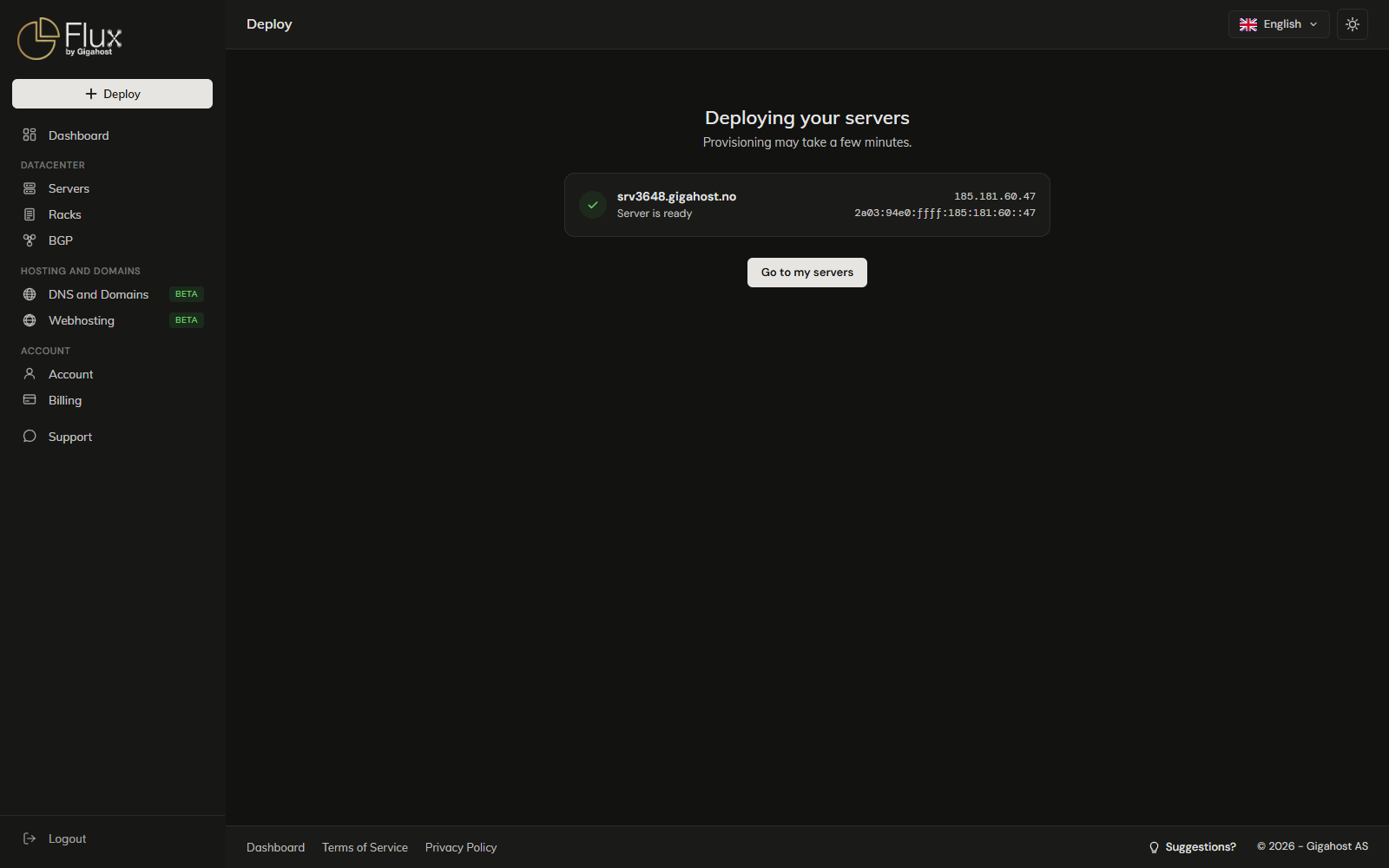
You can leave the page; opening Deploy again resumes the progress view until every server is ready.
If your account is not yet verified, the deployment waits until the invoice is paid.
Bare metal
Bare metal has no Backups step and no ISO tab. An in-stock server is assigned to your account as soon as the order is placed.
Sold-out bare metal
- Reserve and auto-deploy: the order is held and deployed automatically when capacity frees up. You are billed only when it deploys.
- Notify me: you get an email when the plan is available again. No order is placed.
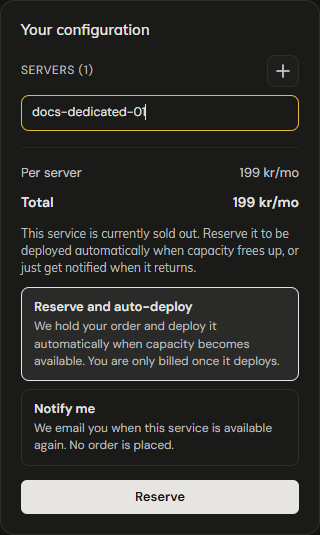
Reservations are listed at the top of the server list. Cancel removes a reservation, and it will then not deploy when capacity returns. Auction servers cannot be reserved.

When you cannot deploy
- Sub-client users cannot order. Ask the partner account that manages you.
- Account not allowed to order. Contact support.: ordering is disabled on the account.
- Please complete your account profile before ordering.: address, postal code and city are required on Account.
- Account has suspended services. Contact support.: clear the suspension first.
- You already have an order awaiting review: wait for that order to be approved before placing another.
- Product is out of stock in the selected datacenter.: the datacenter filled up while you were ordering. Pick another location.