

Email
The Email tab manages mailboxes, forwarders and autoresponders for the domain selected at the top of the page.
Email Accounts
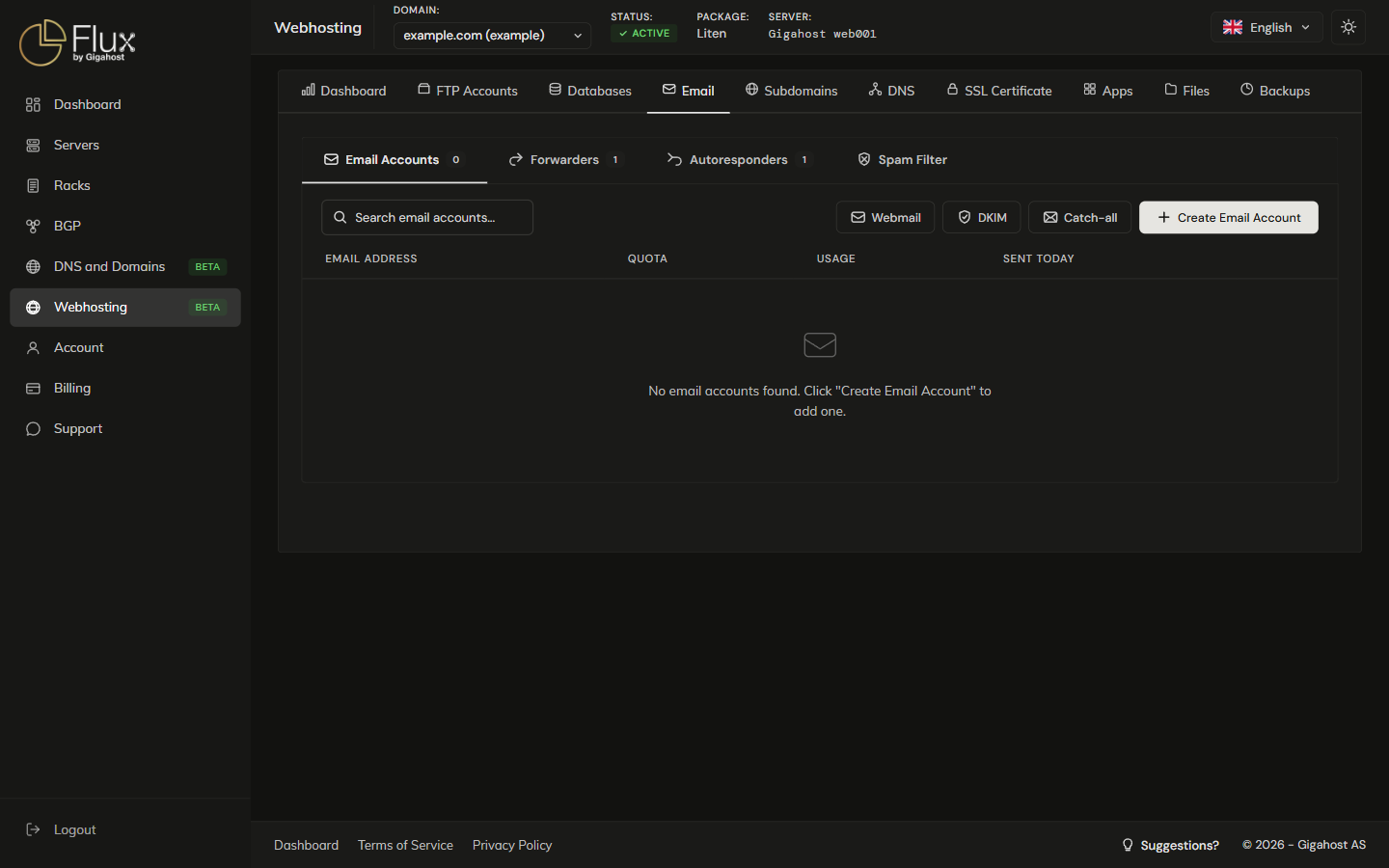
Creating an Email Account
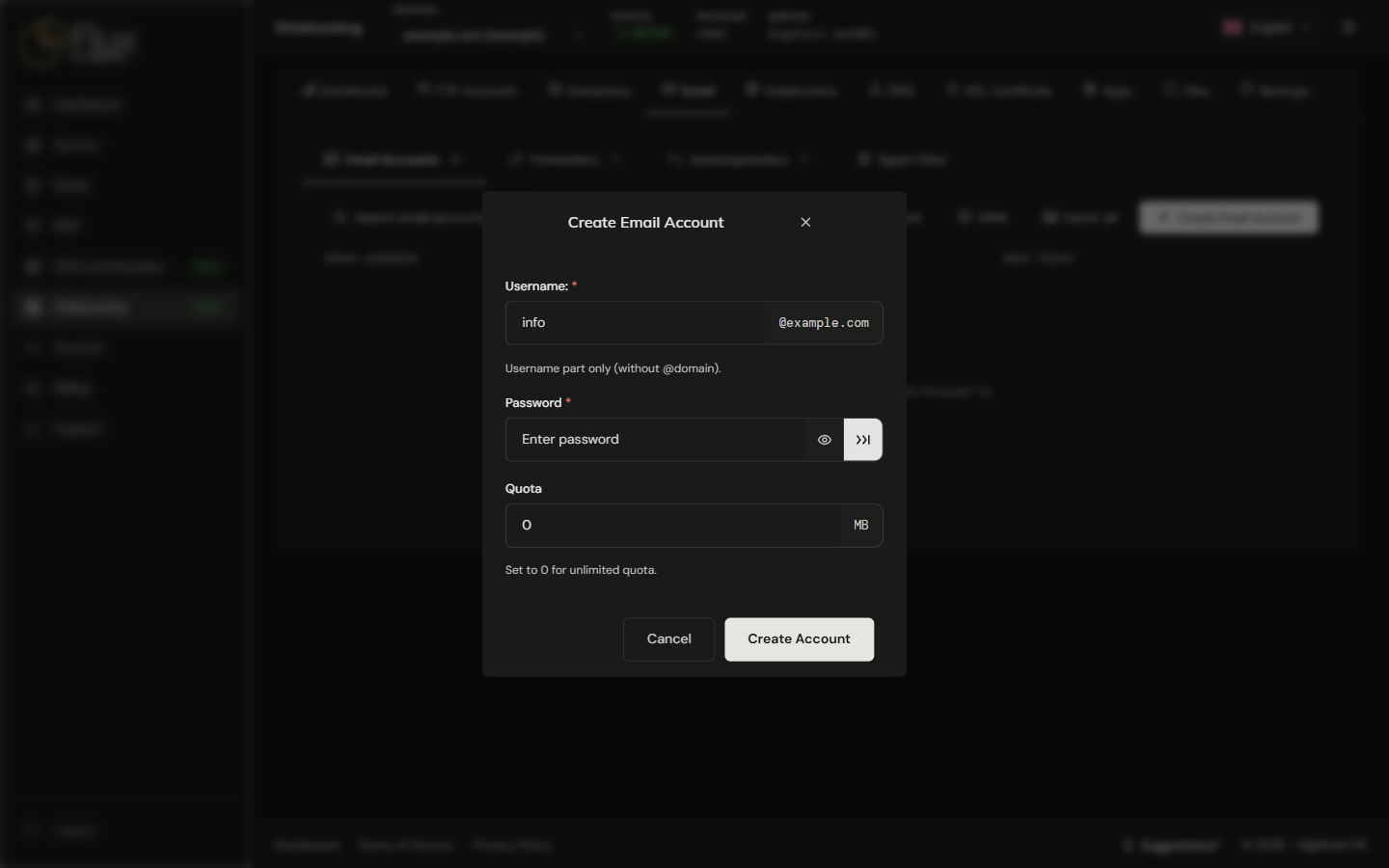
Click Create Email Account and enter the part before the @ and a password. A quota of 0 means unlimited storage.
WARNING
Deleting an email account permanently removes all messages stored in that mailbox. This cannot be undone.
Webmail
Webmail opens webmail in a new tab. Log in with the full email address and password.
Catch-all
Catch-all decides what happens to mail for addresses that do not exist on your domain: rejected (the default), dropped without a bounce, or forwarded to an address you enter.
Forwarders
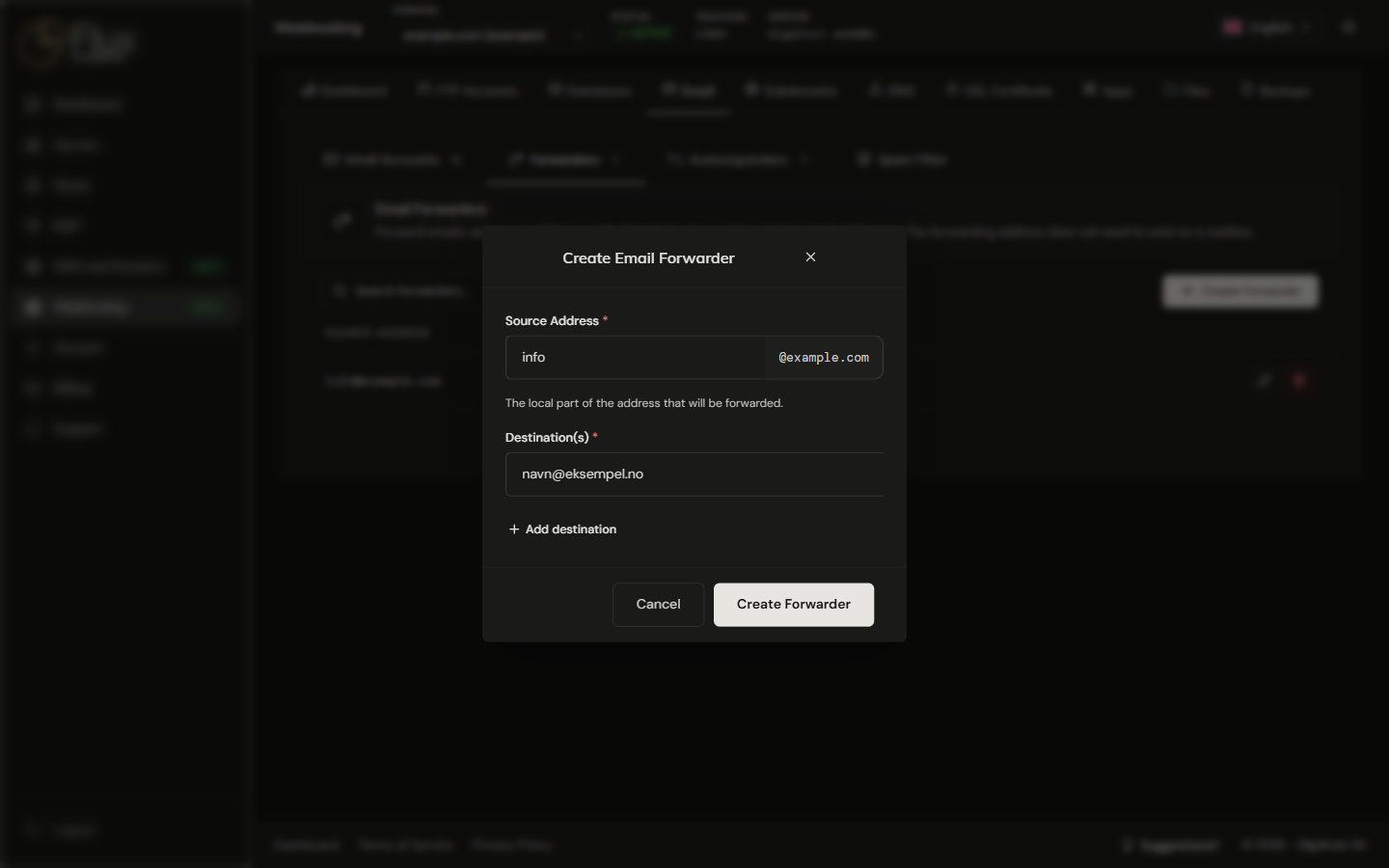
Forwarders send mail for one address on your domain to one or more other addresses. The source address does not need to be a mailbox, and it cannot be changed after the forwarder is created.
Autoresponders
Autoresponders reply automatically to anyone who emails an address, for example with a vacation notice. Reply Interval sets how often the same sender gets the reply. The address cannot be changed after the autoresponder is created.
Email Client Configuration
Use these settings in any email client (Outlook, Thunderbird, Apple Mail, etc.).
Incoming Mail (IMAP / POP3)
| Setting | Value |
|---|---|
| Server | mail.yourdomain.com |
| IMAP port | 993 (SSL) / 143 (STARTTLS) |
| POP3 port | 995 (SSL) / 110 (STARTTLS) |
| Username | Your full email address |
Outgoing Mail (SMTP)
| Setting | Value |
|---|---|
| Server | mail.yourdomain.com |
| SMTP port | 465 (SSL) / 587 (STARTTLS) |
| Authentication | Required |
| Username | Your full email address |
TIP
Use the SSL/TLS ports (993 for IMAP, 465 for SMTP). Most email clients detect these settings automatically.