

Authentication
The Authentication tab handles your own login: password, 2FA and passkeys.
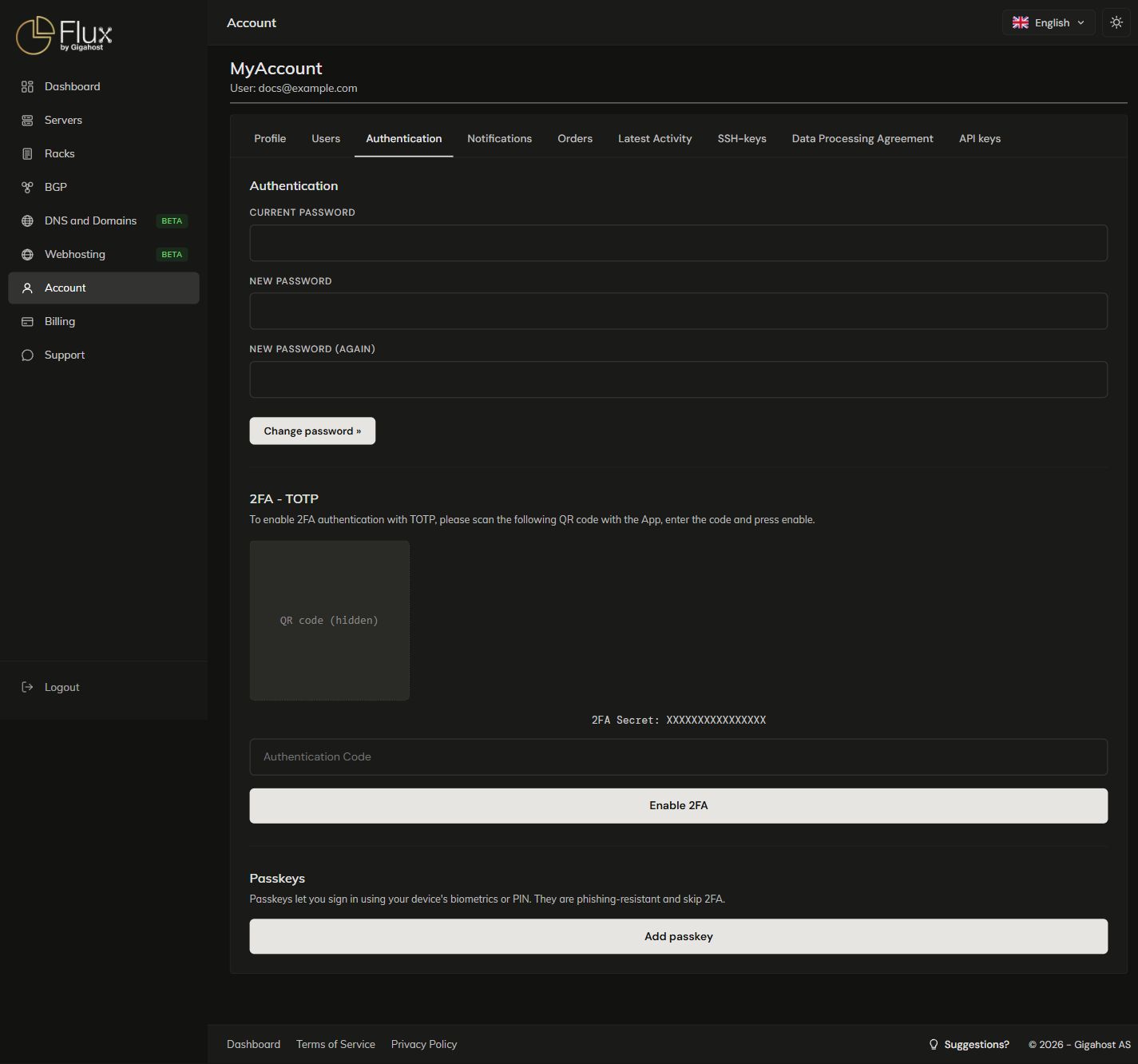
Change password
The new password must be at least 7 characters. It takes effect at once, and you stay signed in.
2FA with TOTP
2FA works with any standard authenticator app (Google Authenticator, Authy, 1Password, Bitwarden, Aegis). Once it is on, every sign-in asks for the 6-digit code as well as the password. For the API, see API → Authentication.
TIP
Save the secret shown under the QR code in a password manager. If you lose your phone, you need it to set up the app on a new device.
Disabling 2FA
You need a current code from the authenticator app to turn 2FA off. Turning it off creates a new secret, so to turn it on again you scan the new QR code; the old entry in the app no longer works.
Passkeys
A passkey signs you in with your device's biometrics, PIN or a hardware security key, without a password or 2FA code. Passkeys need a browser with WebAuthn support.
Registering a passkey
Click Add passkey, give it a name you will recognise, and confirm in the browser's prompt. If you cancel the browser prompt, nothing is registered and no error is shown.
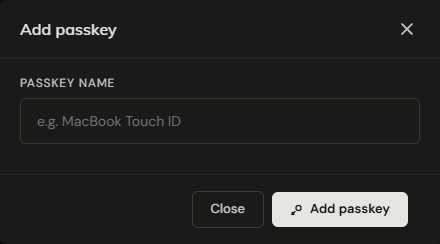
Register a second passkey on another device so you have a fallback.
Signing in with a passkey
Enter your email address on the login page. If the account has passkeys, the browser offers to sign you in with one.
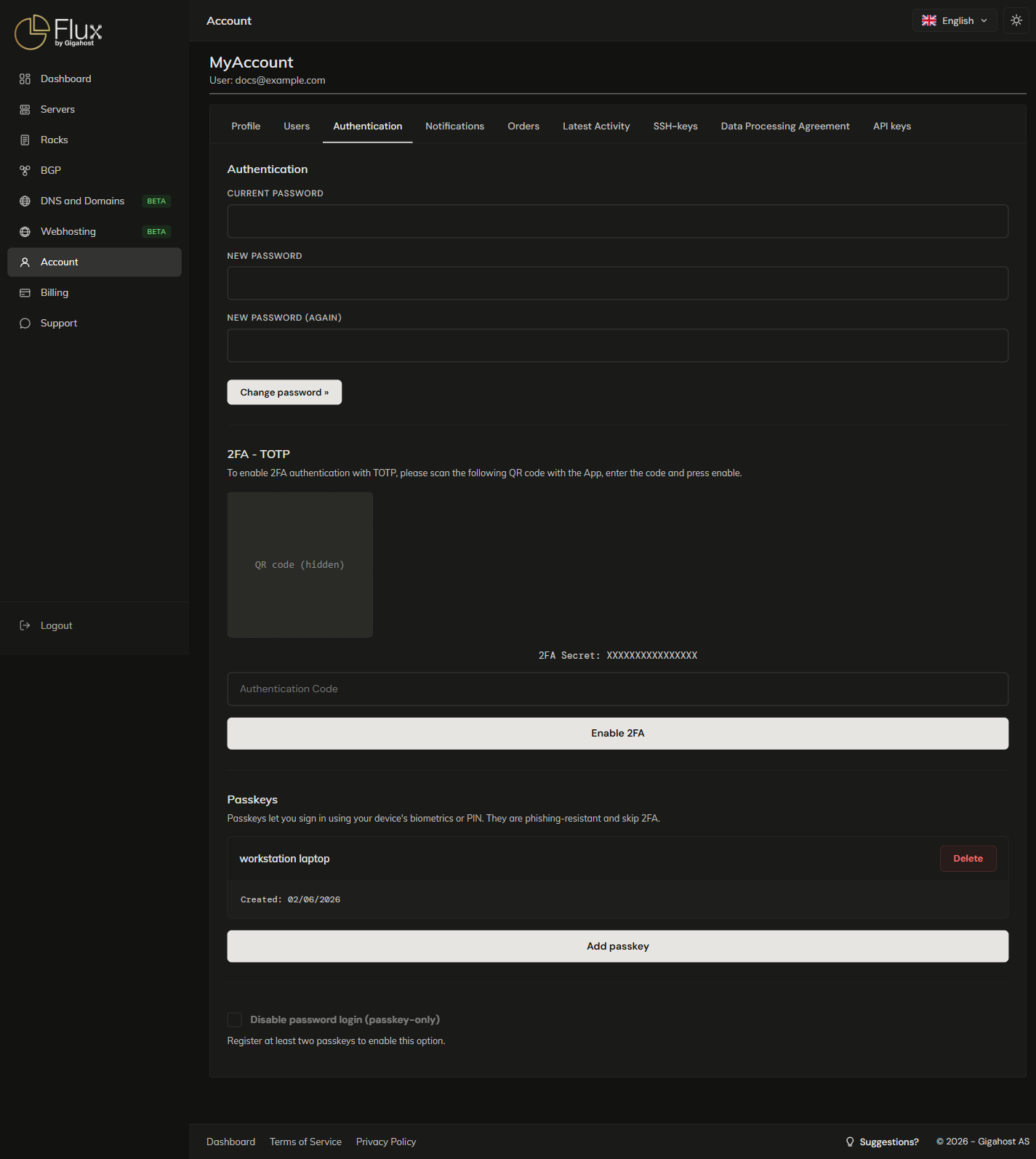
Managing existing passkeys
WARNING
Deleting a passkey takes effect at once. If the account is in passkey-only mode and fewer than two passkeys remain, password login is switched back on automatically.
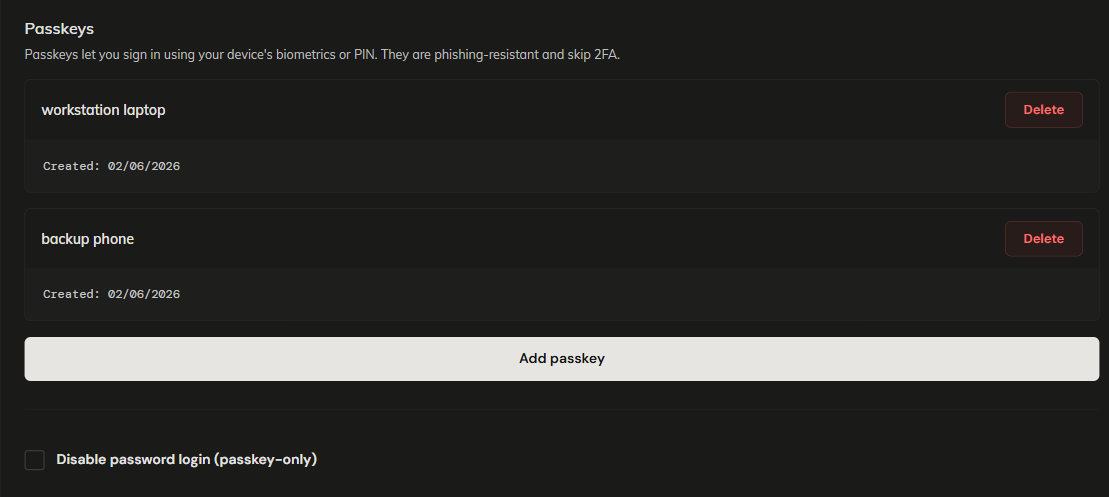
Disable password login (passkey-only)
Disable password login (passkey-only) makes passkeys the only way to sign in, in Flux and in the API. Your password and 2FA codes stop working, and POST /authenticate refuses password credentials. The option needs at least two registered passkeys, and you confirm it with your current password.
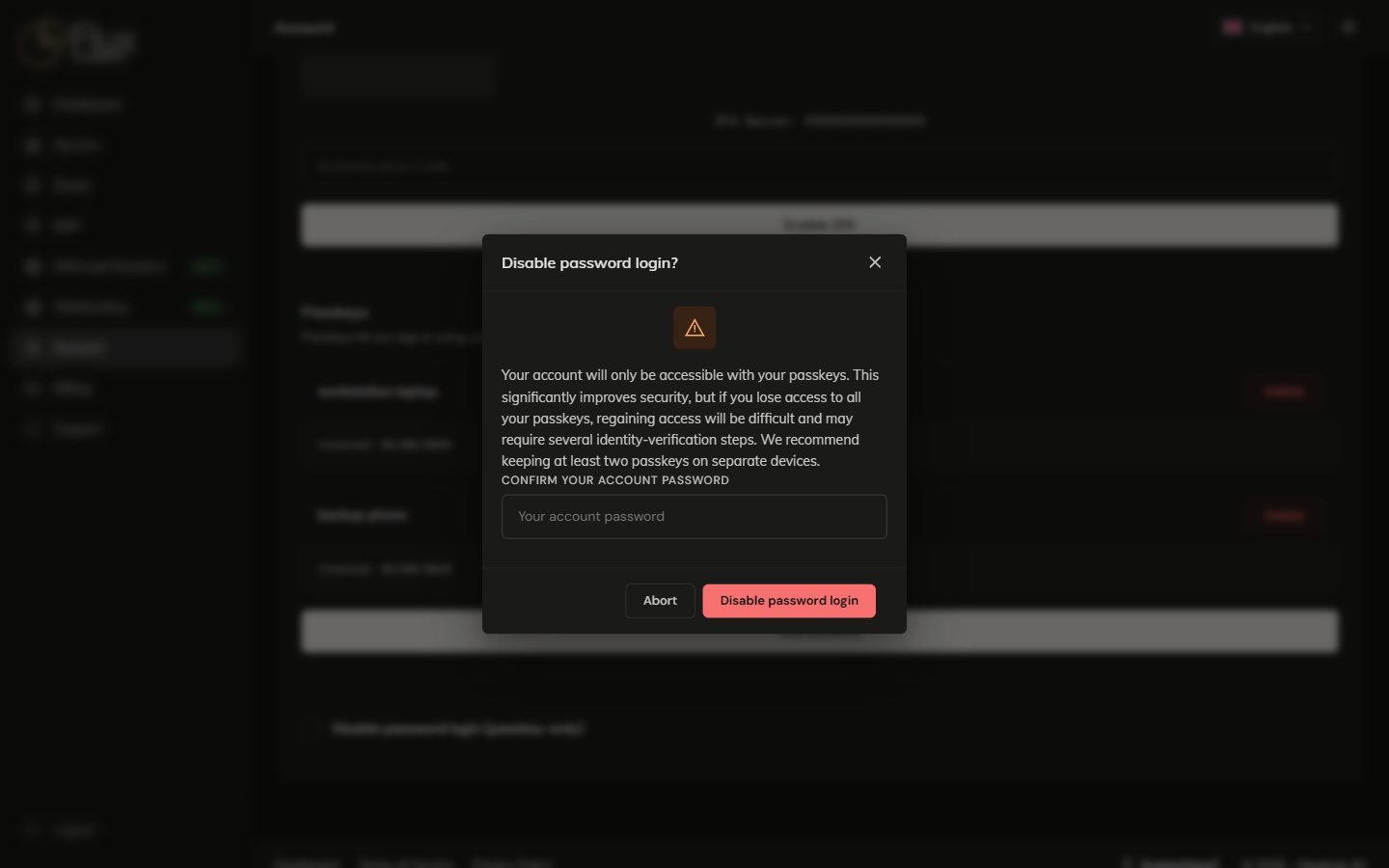
WARNING
Keep at least two passkeys on separate devices before you enable this, for example Touch ID on your laptop and a hardware security key (such as a YubiKey) kept at home. A passkey on your laptop and another in the same laptop's synced browser are both gone if the laptop is. If you lose every passkey, getting back in requires identity verification with Support.
To turn password login back on, untick the box. If you delete passkeys until fewer than two remain, password login is turned back on automatically so you are not locked out.
Passkey vs. 2FA
| Passkey | Password + TOTP | |
|---|---|---|
| Phishing-resistant | Yes (key is tied to the gigahost.no origin) | No; phish a TOTP and the attacker has 30 seconds to use it |
| Cross-device sync | Depends on platform (iCloud / Google / 1Password sync passkeys; YubiKeys do not) | TOTP secret can be re-scanned |
You can use both: a passkey for everyday sign-in and password + TOTP as a fallback.
TIP
For scripts and integrations, use API keys instead of your password or a passkey. They have scoped permissions and can be revoked one by one without affecting your login.