

Reset a Linux root password
Boot the server into rescue mode, mount the installed system and run passwd in a chroot. Rescue mode is available on KVM and dedicated servers.
1. Boot the server into rescue
Click Rescue on the server page in Flux.
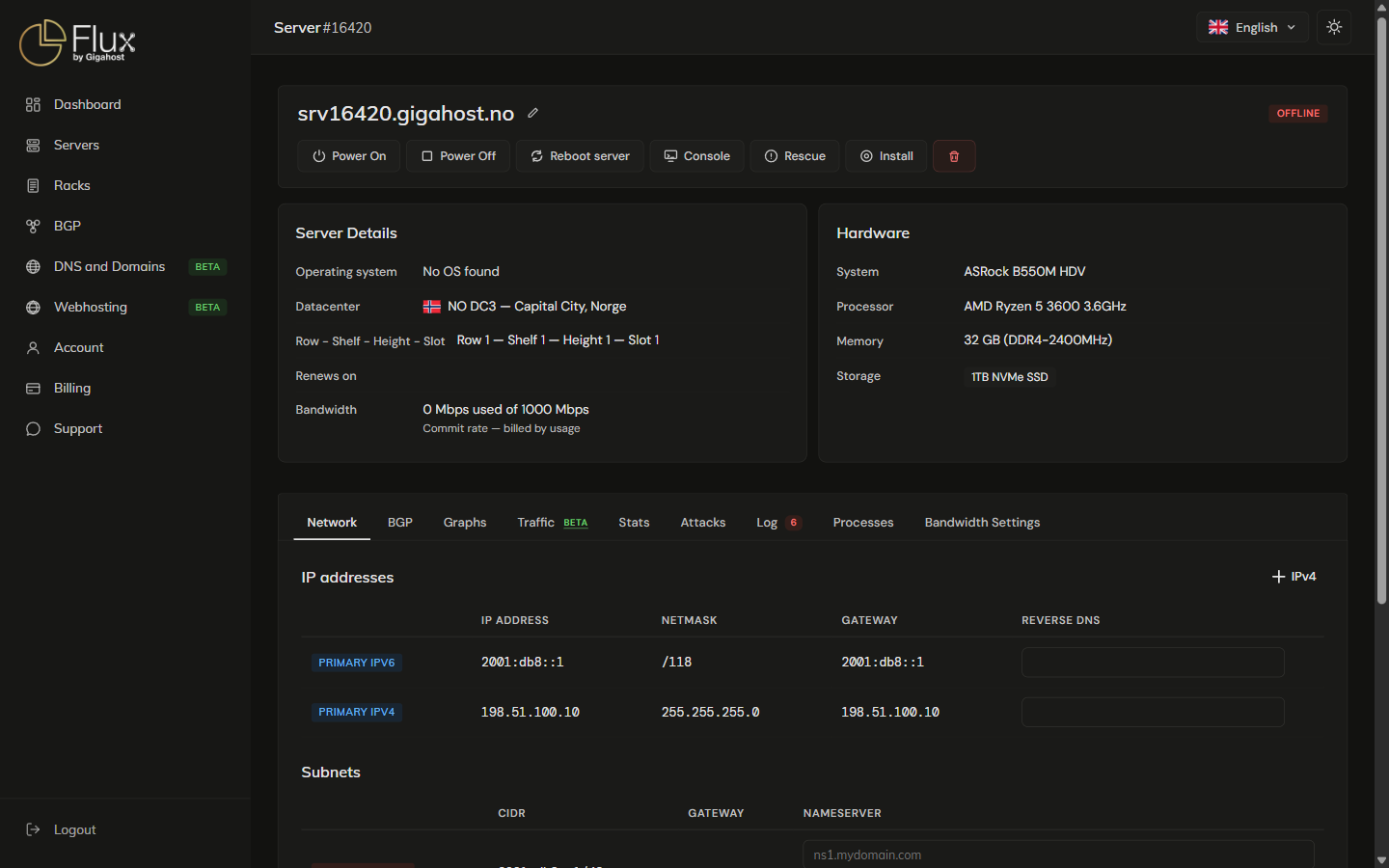
Log in as root over SSH with the key you selected or the password from the email, as described in Rescue Mode.
2. Mount the installed system and reset the password
Find the root partition, mount it at /mnt and bind-mount /dev, /proc and /sys as described in Mounting the Server Disk. If /boot or /boot/efi are on separate partitions, mount those under /mnt too. Then enter the chroot and set the new password:
chroot /mnt
passwd
3. Clean up and reboot
Exit the chroot and unmount everything in the reverse order you mounted it:
exit
umount /mnt/dev
umount /mnt/proc
umount /mnt/sys
umount /mnt/boot/efi    # if mounted
umount /mnt/boot        # if mounted
umount /mnt
Then click Reboot server in Flux to leave rescue mode, and log in with the new password.
TIP
If the root partition lives inside an LVM logical volume (typical on Ubuntu Server installs), the device name will look like /dev/mapper/ubuntu--vg-ubuntu--lv. Run vgchange -ay first to activate the volume group if lvs shows it as inactive.